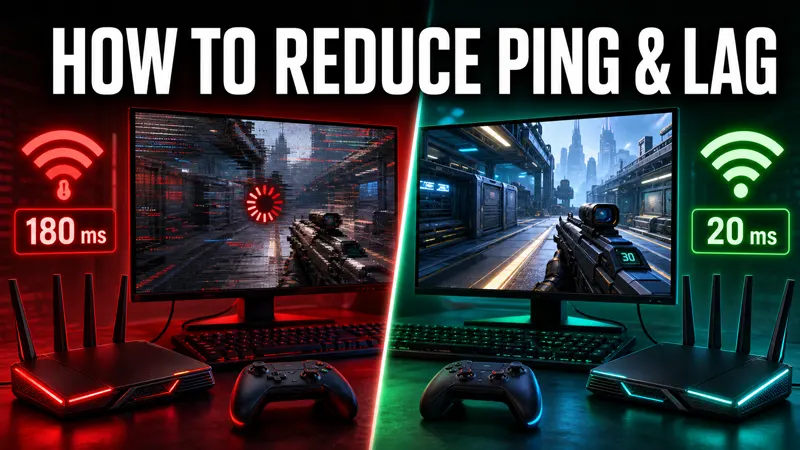
To reduce ping in online games, improve the route and stability between the device and the game server. Start with a wired connection, stop competing downloads and select the nearest supported server. Graphics settings can improve frame rate, but they do not directly shorten network latency.
Ping, lag and frame rate are different
Ping measures round-trip network delay, usually in milliseconds. Packet loss means some data never arrives, while jitter describes inconsistent delay. Frame rate is the speed at which the device renders the game. All can feel like lag, but they need different fixes.
Use the game’s network statistics if available. A stable 45 ms connection can feel better than a connection jumping between 20 and 120 ms.
How to Reduce Ping in Online Games with Ethernet
Connect the PC or console directly to the router with a working Ethernet cable. Wired networking avoids radio interference, walls and competition between nearby Wi-Fi networks. It cannot fix a distant server, but it usually improves consistency.
If Ethernet is impossible, place the device and router closer together with fewer solid obstacles. Avoid hiding the router behind a television, inside a cabinet or near heavy interference.
Improve the Wi-Fi connection
Modern routers may offer 2.4 GHz, 5 GHz and 6 GHz bands. Higher-frequency bands can provide more speed and less congestion at short range, while 2.4 GHz travels farther. Choose the band that produces stable latency in the actual room, not simply the highest advertised speed.
Restart a router only when troubleshooting; scheduled daily reboots are not a substitute for fixing overheating, poor placement or outdated equipment. Install firmware through the manufacturer’s official administration method.
Stop background traffic
Pause game downloads, cloud backups, video uploads and high-resolution streaming on the same connection. Check other household devices as well as the gaming system. Upload saturation is particularly damaging because acknowledgements and game traffic may queue behind large transfers.
On PC, review the operating system’s network-usage tools. Do not install an unknown “ping optimizer” that demands administrator access.
Choose the correct game server
Select the nearest official region that offers a healthy player population. Physical distance and internet routing place a real lower bound on latency; software cannot make a signal travel instantly across continents.
Automatic selection is usually sensible, but a manual region can help when the game repeatedly chooses a distant server. Recheck the setting after traveling or using a different network.
Router queue management and QoS
Quality of Service can prioritize gaming traffic, and modern queue-management features can reduce bufferbloat when the connection is busy. Incorrect rules can make performance worse, so use the router manufacturer’s documentation and change one setting at a time.
A faster internet plan helps when the household exceeds available capacity, but gaming itself often uses modest bandwidth. Stability, routing and congestion matter more than a very high headline download speed.
Avoid unnecessary VPNs
A VPN usually adds another server and encryption step, which can increase latency. In rare routing problems a reputable service may produce a better path, but it should be tested rather than assumed.
Never use a VPN to evade a game ban, regional restriction or competitive rule. Free gaming VPNs may log traffic, inject advertising or provide congested routes.
Check packet loss
Test the connection at different times. Loss that affects every device may point to the router, modem, local line or internet provider. Loss only on one device suggests Wi-Fi interference, a cable, driver or local software issue.
Record timestamps and basic test results before contacting the provider. Avoid publishing an IP address or account number in a public support forum.
A quick troubleshooting order
Change one variable at a time so the result is meaningful. Begin locally, then consider the internet provider or game server.
- Check the game’s server-status page.
- Pause background downloads and uploads.
- Switch from Wi-Fi to Ethernet.
- Restart the game and network equipment once.
- Choose the nearest official region.
- Test another device or cable.
- Contact the provider when loss affects the full connection.
Frequently asked questions
Does lowering graphics reduce ping?
No. It may improve frame rate and input responsiveness, but network ping is a separate measurement.
Will faster internet always lower latency?
Not always. Capacity helps congestion, while server distance, routing, Wi-Fi and packet loss can remain the limiting factors.
Should I use a VPN for lower ping?
Usually not. Test carefully because the extra route commonly increases latency.
Official resources
Explore more on GameWilds: more gaming guides.