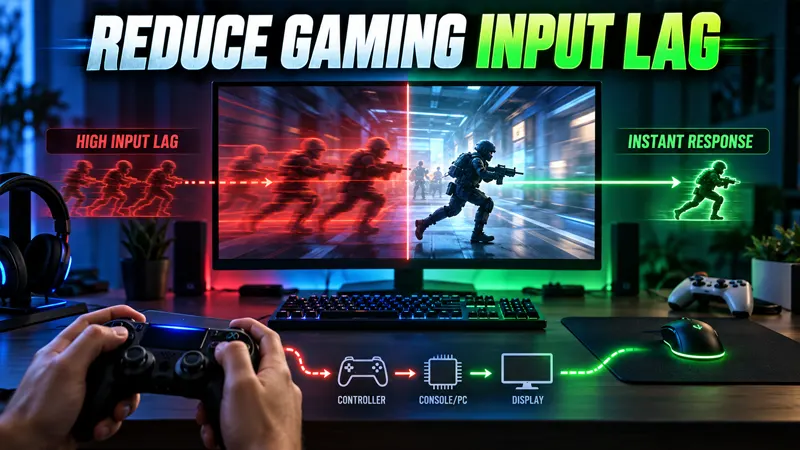
Updated September 21, 2026. Learning how to reduce gaming input lag can make aiming, movement, rhythm games, and menu navigation feel immediately more responsive. The best fixes begin with display settings and connection checks before changing hardware.
Reduce Gaming Input Lag: Start With the Display
Input lag is the delay between pressing a button and seeing the result on screen. It is different from online latency, which measures network delay between your device and a server. A game can have a low ping and still feel slow because the television is processing the picture.
Test one change at a time. Use the same game, scene, controller, and display so you can identify which setting actually helps.
11 Proven Ways to Reduce Gaming Input Lag
- Enable Game Mode. Most televisions include a Game or Low Latency picture preset. It bypasses motion smoothing and other processing that can add noticeable delay.
- Turn off motion interpolation. Features named MotionFlow, TruMotion, Auto Motion Plus, or similar create artificial frames. They can look smooth for movies but often make controls feel delayed.
- Use the correct HDMI port. Some displays reserve full gaming features for specific ports. Check the manual and connect the console or PC to the port supporting the desired refresh rate, VRR, and bandwidth.
- Enable ALLM and VRR. Auto Low Latency Mode can switch a compatible display into its fastest mode. Variable Refresh Rate reduces tearing and uneven frame delivery within its supported range.
- Choose a higher refresh rate. If the hardware and game support 120 Hz or more, enable it in system and display settings. A new frame becomes available more often than at 60 Hz.
- Prefer a stable performance mode. A steady frame rate usually feels better than a visually richer mode with frequent drops. Try the game’s performance preset and compare responsiveness.
- Connect controllers by cable for testing. Modern wireless controllers are usually responsive, but a wired test can reveal interference, battery, or pairing issues. Use a data-capable cable, not a charge-only cable.
- Update the controller and system. Firmware updates can improve USB, Bluetooth, display, and compatibility behavior. Install official updates and restart the device afterward.
- Close heavy background tasks. On PC, browsers, recording tools, overlays, scans, and downloads can create frame-time spikes. Close unnecessary apps and confirm the game uses the intended graphics processor.
- Use wired networking for online games. Ethernet does not change local display lag, but it can reduce packet loss, jitter, and wireless interference that make online controls feel inconsistent.
- Match frame limits and sync settings. On PC, test the in-game frame cap, V-Sync, adaptive sync, and driver settings together. The best combination depends on whether tearing or the lowest possible latency is the priority.
Input Lag vs Ping vs Frame Time
Input lag covers the full path from controller to visible response. Ping is the round-trip time to an online server. Frame time describes how long the system takes to produce each frame. These problems can overlap, but each needs a different fix.
If offline games feel delayed, focus on the controller, console or PC, and display. If only online matches feel late, test the network and server region. If movement stutters during busy scenes, examine frame rate and frame-time stability.
Best TV Settings for Low Input Lag
Begin with Game Mode, then disable motion smoothing, noise reduction, dynamic contrast, and unnecessary image enhancement. Keep the television’s firmware current. Confirm that the HDMI input is labeled or configured for a game console or PC when the display offers that option.
Do not copy advanced color values from a different television model. Low-latency settings are useful across models, but brightness and color calibration should match the actual panel and room.
Console Settings That Improve Responsiveness
Set the console to the highest refresh rate supported by both the game and display. Enable VRR and ALLM where available, then choose performance mode inside demanding games. Confirm the HDMI cable meets the required specification.
Some titles use a separate 120 Hz option, while others follow the console’s system preference. Resolution may decrease in performance mode, so compare clarity and response before deciding.
How to Reduce Input Lag on PC
Use exclusive fullscreen when it performs better than borderless mode, enable the monitor’s low-latency or gaming preset, and select its maximum refresh rate in operating-system settings. Keep graphics drivers current, but avoid changing many driver options simultaneously.
Cap the frame rate at a value the PC can sustain. A wildly fluctuating rate can feel worse than a slightly lower stable cap. Competitive players may disable V-Sync for minimum delay, while adaptive-sync users may prefer a cap just below the monitor’s maximum refresh rate.
Controller Delay Troubleshooting
Charge the battery, remove unnecessary USB hubs, and move wireless receivers away from routers or crowded cables. Delete and pair the controller again if inputs become inconsistent. Test a second controller to determine whether the issue follows the gamepad or remains with the system.
Bluetooth performance depends on distance, obstacles, radio interference, and the quality of the adapter. A direct USB port or official wireless receiver can provide a useful comparison.
Does a Faster HDMI Cable Reduce Lag?
A compatible cable does not make button presses travel faster by itself. Its job is to carry the required resolution, refresh rate, HDR, and VRR signal reliably. Replace a cable when the existing one cannot support the chosen mode or causes dropouts, flicker, or black screens.
How to Test Input Lag Changes
Choose a repeatable action, such as navigating a menu, firing in a training area, or moving a cursor. Record slow-motion video with a phone if you need a rough before-and-after comparison. Professional measurements require specialized equipment, but consistent testing can still reveal meaningful improvements.
For more performance help, visit the GameWilds Guides section. Xbox explains 120 Hz display requirements, and PlayStation provides official guidance for PS5 video output settings.
Frequently Asked Questions
Does Game Mode reduce picture quality?
It may disable some image processing, but it normally preserves the core picture while substantially reducing delay.
Is wired always faster than wireless?
Not always by a noticeable amount. Wired testing is valuable because it removes battery and radio conditions from the diagnosis.
Does 120 Hz reduce input lag?
It can. At 120 Hz, frames are displayed more frequently than at 60 Hz, provided the game and hardware actually produce the higher rate.
Can low FPS cause input lag?
Yes. Longer and inconsistent frame times delay visible feedback, especially when the CPU or GPU is overloaded.
To reduce gaming input lag, fix the slowest part of the chain instead of buying random accessories. Game Mode, stable frame rates, correct refresh-rate settings, and clean controller connections deliver the biggest improvements for most players.