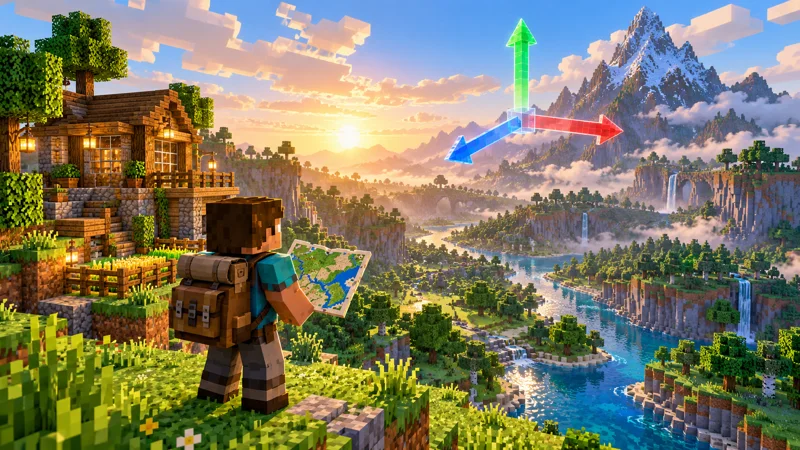
Minecraft coordinates turn a vague memory of “the village behind the mountain” into a location you can actually revisit. The trick is not memorizing three numbers: it is recording them clearly, understanding which number to change, and choosing a safe route back.
This guide separates the Java and Bedrock controls, then walks through a simple navigation exercise. The worked examples and travel checklist are GameWilds recommendations, not claims of a new game feature.
1. Show Minecraft coordinates in your edition
In Java Edition, press F3 and look for the XYZ position in the debug display. On a keyboard that assigns media controls to the function keys, try Fn + F3. In Bedrock Edition, open the world’s Settings, select Game, and find Show Coordinates under World Options. On someone else’s world, ask the owner if you cannot change that setting.
These are different interfaces for the same idea. Do not spend time searching for the Java debug screen on a console, or installing a random “coordinate unlocker.” Start with the built-in option for your edition.
2. Read X, Y and Z without mixing them up
X measures east–west, Y is height, and Z measures north–south. Increasing X takes you east; increasing Z takes you south. Negative values are normal, not errors. For the official explanation and edition controls, see Mojang’s Overworld exploration guide.
Imagine your base is at X 120, Y 70, Z -240. The minus sign belongs to the third number. Writing only “120, 70, 240” sends you somewhere else. Put a label beside every value until reading the sequence feels natural.
3. Save Minecraft coordinates before leaving home
Use a small travel log rather than a folder full of unlabeled screenshots. Our recommended entry is:
- Name: Riverside base, front door.
- Dimension: Overworld.
- Position: X 120 / Y 70 / Z -240.
- Approach: Enter from the river side; cliff behind the house.
- World: Solo survival, or the server’s recognizable name.
The approach note matters because a point is not a route. A door, roof and cave below a house can share similar horizontal numbers. Record the actual entrance you want to reach, not a dramatic screenshot taken from a nearby ridge.
Before changing a world or trying unfamiliar tools, keep a recoverable copy. Our Minecraft world backup guide covers that separate job.
4. Practise Minecraft coordinates with one axis at a time
Suppose you are at X 180, Y 73, Z -210 and want the example base at X 120, Y 70, Z -240. Your horizontal targets are 60 blocks lower on X and 30 lower on Z. Those differences are a planning aid, not an instruction to dig a straight tunnel.
- Stand somewhere safe and note the current X and Z.
- Walk a short distance and observe which number changes.
- Turn until X moves toward 120, then follow passable terrain.
- Recheck Z and move it toward -240.
- Near the destination, look for the entrance and compare the height.
For a first practice run, stay close enough to see your starting point. Learn how your movement affects the display before relying on it during a long expedition. A five-minute rehearsal is more useful than guessing while carrying valuable equipment.
5. Treat height as a safety check
Matching X and Z does not guarantee an accessible destination. If your saved Y is much higher than your current position, you may be below the place you want. If it is lower, the destination may be down a slope or underground.
Do not dig directly toward a number just because the display looks close. Find a visible stairway, safe slope or known entrance. When recording a cave, add the surface entrance as a second waypoint. This gives you a practical connection between the place above ground and the point below it.
6. Share Minecraft coordinates with friends
A useful message is “Overworld, riverside base, X 120 / Y 70 / Z -240, enter from river.” That is clearer than “come to 120.” Ask the other player to repeat the destination if you are coordinating a long trip.
Keep separate notes for different worlds and dimensions. Never assume that a screenshot from last week belongs to the server you are playing today. In a shared travel log, use consistent names such as North Village or Main Mine Entrance so everyone can tell similar locations apart.
7. Fix common Minecraft coordinates mistakes
- The number moves away from the target: Stop and change direction; do not keep walking while trying to reason it out.
- You reached the horizontal point but see no building: Check height, dimension, world and the saved approach note.
- The destination seems mirrored: Compare every minus sign and confirm you did not swap X and Z.
- The keyboard shortcut does nothing: Check the function-key mode and confirm you are using Java rather than Bedrock.
- A setting is unavailable on a shared world: Ask its owner instead of downloading an unofficial workaround.
A simple routine for every expedition
Record home, test the display, write down important junctions, and stop periodically to compare your current position with your destination. Save a second waypoint whenever the route becomes difficult to describe. Minecraft coordinates work best as part of that routine, not as a replacement for watching the terrain.
If you enjoy learning a new system through short practice sessions, our Stardew Valley fishing guide uses the same approach: isolate one skill, practise it, then add complexity.