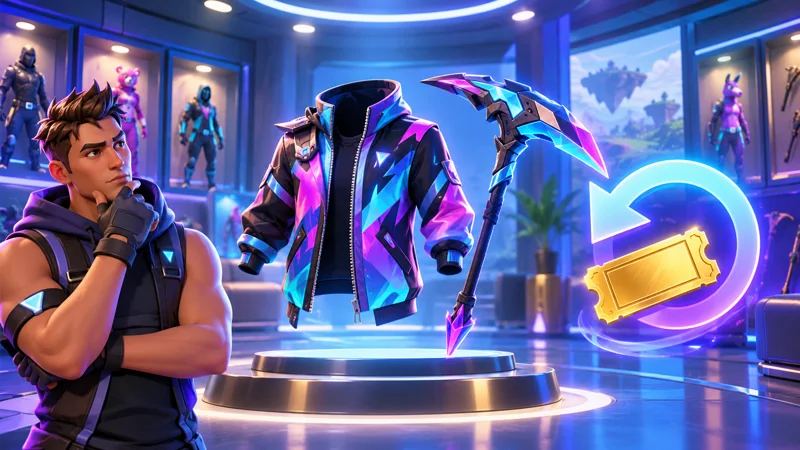
Fortnite return tickets are useful when an eligible Item Shop purchase turns out to be the wrong choice. They are not the only option, though: a recent unused purchase may qualify for cancellation instead. Checking the difference first can keep you from spending a ticket unnecessarily.
This guide is about cosmetic purchases made with V-Bucks. It does not promise cash refunds, free currency or a way around Epic’s rules. The decision checklist below is our recommended way to understand your options before confirming a return.
1. Check cancellation before Fortnite return tickets
Epic allows Cancel Purchase for eligible V-Bucks purchases within 24 hours, provided the item has not been used or equipped in any game mode. A successful cancellation removes the item and restores its V-Bucks cost. Each item can only be canceled once.
If you bought something by mistake, stop using the item while you check the menu. Do not equip it just to see whether you like it and assume that cancellation will remain available. Read the eligibility shown for that specific purchase rather than relying on a friend’s experience with another item.
2. Understand Fortnite return tickets before spending one
Return Tickets cover eligible purchases from the previous 30 days. Accounts begin with three, can hold up to three, and receive a new ticket on the applicable 365-day refresh schedule. Using a ticket removes the returned item and restores the V-Bucks paid for it.
The important practical point is scarcity. A ticket is not something to spend automatically whenever you feel uncertain about a cosmetic. Look at the purchase, decide whether you genuinely want to give it up, and read the final confirmation before accepting.
Check the account’s displayed refresh date instead of calculating it from memory. Several purchases made close together do not mean several tickets will all return together. Epic’s return-ticket overview explains the refresh system.
3. Open the correct return screen
In Fortnite, use the player icon, open the hamburger menu, then Support and Refunds and Return or cancel purchase. Select the relevant purchase and follow the displayed instructions. On the Web Item Shop, sign in through the official site and use the profile’s Return and Cancel Purchases section.
Before continuing, check the account identity. A household may have several Epic accounts and several consoles. Looking at the wrong account’s purchase list can make a legitimate transaction appear missing. Compare the item and purchase date with your own receipt without posting the receipt publicly.
4. Check exclusions and bundles carefully
Not every transaction qualifies. Epic excludes items such as passes, gifted purchases and developer-made island transactions from these self-service options. Real-money purchases follow a different refund route. Eligible bundles are returned as bundles rather than by keeping selected pieces.
For the current exclusions and menu steps, use Epic’s official cancellation and refund instructions. If a bundle involves multiple overlapping purchases, read the account’s exact return offer; do not assume an old bundle example describes your transaction.
Our recommendation is to write down what you expect to lose and what you expect back before pressing the final button. If the confirmation says something different, stop. The purpose is to resolve an unwanted purchase, not create another surprise.
5. Use a quick decision checklist
Work through these questions in order:
- What was purchased? Identify the exact item or bundle, not just its theme or character.
- How was it paid for? Distinguish V-Bucks from a direct money purchase.
- When was it purchased? Read the actual transaction date.
- Has it been equipped or used? Do not guess if cancellation depends on this.
- Which option does the official screen offer? Cancellation and ticket returns are different.
- What will the confirmation remove? Check bundle contents and the stated return.
This process is deliberately slower than pressing the first refund button you find. It gives you a chance to spot the wrong account, a different payment method or a bundle you still want before making the change.
6. Handle missing Fortnite return tickets safely
If a purchase is not listed, check the account, date and transaction type first. If the menu offers no eligible option, do not assume that reinstalling Fortnite or changing platforms will create one. Epic Support cannot grant extra Return Tickets.
Keep a short troubleshooting note: the item’s name, purchase date, payment type and exact message. Contact official support when you need an explanation of an account-specific result. Share private transaction information only through the service’s appropriate support channel, not a public comment or social-media reply.
A missing option is also a reason to pause rather than try a stranger’s script. Never give anyone your login, two-factor code or account access in exchange for “unlimited refunds.” Our Fortnite 2FA guide explains a separate account-protection step worth reviewing.
7. Avoid needing Fortnite return tickets next time
Before another purchase, preview what the item actually includes, compare the total with your available V-Bucks and decide whether you would still want it tomorrow. For a bundle, inspect every included component instead of valuing it only by its headline cosmetic.
For shared devices, agree on who may buy items and when a parent or account owner should review a purchase. This is a household habit, not a claim that a refund will be available afterward.
For more practical account and platform walkthroughs, browse our gaming guides. The useful rule here is simple: check cancellation first, use Fortnite return tickets only when appropriate, and trust the official purchase screen over any promise of a workaround.