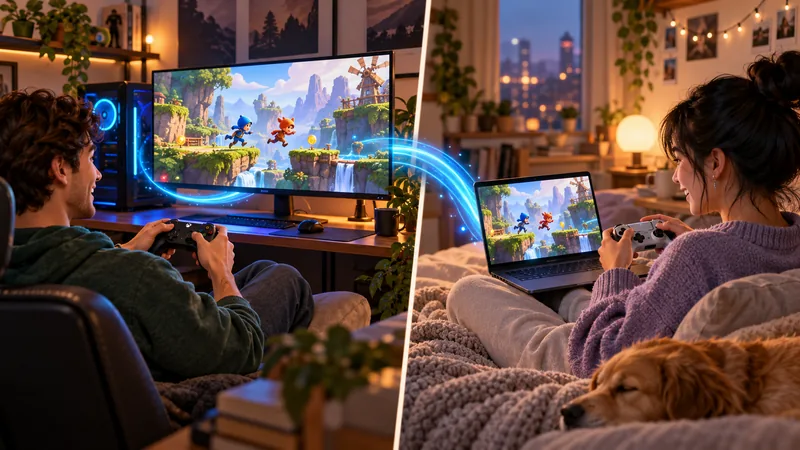
Steam Remote Play Together lets friends join a supported local multiplayer game through a stream from the host. When a session fails, the problem may be game compatibility, input assignment, the host computer or the network—not a need for everyone to buy a second copy.
Source-checked November 2, 2026. The cover is an AI-generated editorial illustration, not a gameplay screenshot. Recommendations below are editorial advice, not claims of hands-on testing.
Valve’s Remote Play overview explains the feature. Its Remote Play support guide covers setup and troubleshooting. The order below is our recommended diagnostic workflow: solve the cheapest, clearest checks before changing a working network.
1. Check Steam Remote Play Together support first
Look at the game’s Steam store features for Remote Play Together. Do not assume that every single-player game becomes co-op when streamed. The host still runs the game, and the game must provide the local multiplayer experience you intend to share.
This differs from streaming your own library to another device. Start by writing down the desired result: two players sharing a local co-op game, or one player accessing a personal PC remotely. Choosing the wrong feature leads to troubleshooting the wrong account and invitation flow.
2. Make the game work locally on the host
Valve recommends updating Steam and launching the host’s game before a remote session. If the host cannot play smoothly without a guest connected, investigate that local issue first. Streaming is not a repair tool for a game that already crashes or stutters.
Use one repeatable scene for comparison. Note whether the host’s own display stutters at the same moment as the guest’s view. That observation helps separate a local rendering problem from a stream-only problem without pretending to be a laboratory benchmark. For a damaged installation, see our Steam file-verification guide.
3. Check the invitation route and online status
For the standard friends-list route, launch the supported game, open the Steam Overlay with Shift+Tab and invite the friend through Remote Play Together. Valve’s support checklist also asks you to confirm that the players can see each other online.
If the expected option is missing, return to the compatibility and host checks rather than sending ordinary game invites repeatedly. Ask the guest what they actually see: no invitation, a rejected connection or a session that opens but cannot be controlled. Those are different symptoms.
4. Check Steam Remote Play Together input access
A guest seeing the game does not prove that the game has assigned them a player slot. Valve allows the host to manage shared input access. Check the session controls, then use the game’s own local multiplayer join procedure.
Test one controller at a time. Give each person a simple action to try and observe which character responds. If a game expects two gamepads, sharing a keyboard may not reproduce that setup. Avoid changing every controller setting at once; keep a note of the last change that affected the result.
5. Reduce network uncertainty, not account security
Valve’s suggested network settings point to its streaming performance overlay as a way to investigate network-related stutter. Use the available diagnostics to identify a pattern before assuming a faster internet plan will fix everything.
Our practical first tests are modest: pause unrelated large downloads, try a reliable wired connection where convenient and compare the same short scene again. Keep security protections in place. Do not disable the firewall, open broad router access or give another player your Steam password just because a connection attempt failed.
6. Change stream settings one at a time
If the game runs well on the host but the guest sees poor video, inspect the available streaming-quality controls. Test a less demanding setting and compare the same scene. A sharper picture is not always the most useful choice when it makes a fast co-op game harder to control.
Record the setting you changed and what improved: motion clarity, responsiveness or stability. Avoid universal bitrate promises. The useful configuration depends on the host workload and the route between players, so a setting copied from someone else’s hardware is a starting hypothesis, not a guaranteed fix.
7. Diagnose Steam Remote Play Together problems by layer
| Observation | Next check |
|---|---|
| Host and guest both stutter | Local game performance on the host |
| Host is smooth; guest video freezes | Streaming diagnostics and the connection |
| Guest sees video but cannot join | Input access and the game’s local player slots |
| No Remote Play Together invitation option | Game support, Steam status and the invitation route |
A useful support report includes the game, host and guest devices, connection type and the shortest steps that reproduce the issue. Say whether the problem exists before a guest connects. This is more actionable than “Remote Play is broken,” and it stops repeated experiments from obscuring the original symptom.
Steam Remote Play Together FAQ
Does every guest need to own the game? Valve describes a host-owned supported game that other players join remotely. Check the specific game and invitation requirements.
Is this the same as native online multiplayer? No. The game runs on the host and guests interact through a stream. That distinction matters when diagnosing latency or local controller slots.
Will a faster GPU automatically fix lag? Not if the bottleneck is elsewhere. Compare the host’s local performance with the guest’s stream first. For other platform help, visit the GameWilds PC Gaming hub.