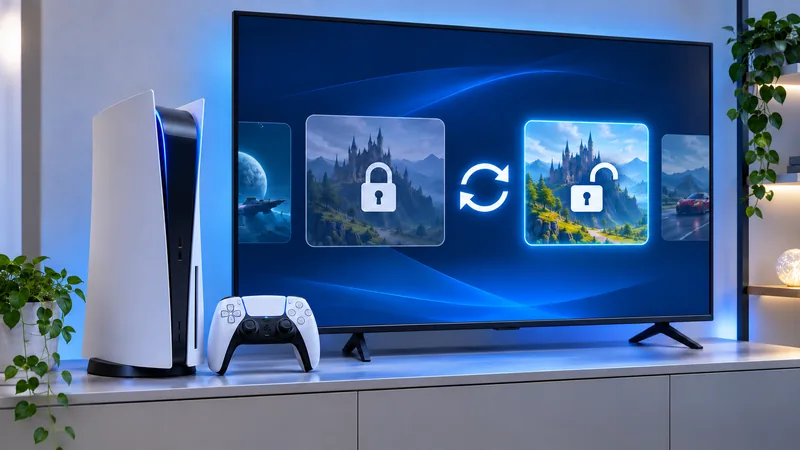
The PS5 Restore Licenses option is worth checking when a purchased game shows a padlock, an add-on seems missing or access does not match what you expect. It is not the same as reinstalling a game, restoring a backup or resetting the console. Start by identifying the account and entitlement before making a large change.
Sources checked November 4, 2026. The cover is an AI-generated editorial illustration, not an official screenshot. Practical checklists below are editorial recommendations, not claims of hands-on testing.
Sony says restoring licenses does not affect your data. It can help with certain access and launch problems, but it cannot create a purchase you do not own or renew an expired subscription. The checklist below keeps those boundaries clear.
1. Identify which PS5 Restore Licenses problem you have
Write down the exact title, edition and message. Is the game missing from the library, visible with a padlock, failing to launch, or launching without an add-on? These symptoms can lead to different checks even when they all feel like “my game disappeared.”
If only one title is affected, start there rather than changing the console’s entire arrangement. If multiple purchases appear missing, compare the account currently signed in with the account used at purchase. Do not buy the game again simply because an icon is locked.
2. Check the purchasing account and transaction
PlayStation’s locked-content troubleshooting guide starts with the correct purchasing account and successful transaction history. For missing purchases, it also advises checking whether games are hidden in the library.
A practical note needs only the item name, purchase date and account identity you recognize. Keep payment details and full receipts out of public screenshots. On a shared console, ask the purchaser to inspect their own account rather than asking them to send a password or sign-in code.
Compare editions carefully. A similar store tile is not enough to establish that you bought the particular game or add-on you are trying to open. Read the transaction and product name together before deciding that the installation itself is at fault.
3. Run PS5 Restore Licenses from the correct menu
On PS5, go to Settings → Users and Accounts → Other → Restore Licenses, then select the licenses to restore. Sony also documents a per-game route: highlight the game on the home screen or in the library, press Options and choose Restore License.
Use the route actually shown in your console’s interface and follow its prompts. Afterward, test the affected game once and record whether the original symptom changed. A different error is useful information; do not erase it from your notes by immediately changing several more settings.
Keep the terminology precise when asking for help. “I restored the license and the same padlock remains” is much clearer than “I restored my PS5,” which can sound like a destructive reset. Stop and reread a menu if it refers to deleting data rather than restoring access.
4. Check subscription access separately
For a PlayStation Plus title, verify an active subscription and the game’s current availability under that benefit. A license refresh does not substitute for those conditions.
Separate a game you bought outright from one you accessed through a subscription catalog. An installed copy can remain on storage even when the access arrangement has changed. Review the official membership information for your account before treating installed files as proof of a permanent purchase.
This distinction also helps when an old tutorial says a particular game was included. A dated announcement is not a statement about today’s catalog. Avoid paying for another membership or edition until you understand which missing entitlement you are trying to resolve.
5. Review sharing without disrupting another console
Sony’s Console Sharing and Offline Play guide places that setting under Settings → Users and Accounts → Other. It can be enabled on one PS5 at a time; content shared by another owner depends on their setup.
Inspect the household’s existing arrangement before switching anything. A console used by several people may be relying on a setting chosen deliberately. Agree who owns the content and which console needs the sharing feature rather than treating activation as a button to toggle repeatedly.
Our PS5 game-sharing guide covers that separate setup. It should not be confused with a way to merge accounts, transfer ownership or avoid a game’s connection requirements.
6. Use PS5 Restore Licenses as one diagnostic step
| Symptom after the check | Next useful question |
|---|---|
| Same padlock | Was the purchase or subscription entitlement verified? |
| Game launches but download is incomplete | Does the download queue show missing content or an error? |
| Only an add-on is missing | Does the exact purchased product match the game edition? |
| Several services fail together | Does the official status page show an outage? |
Check PlayStation service status when access problems are broader than one title. A temporary service problem should not automatically lead to deleting a working installation. For local storage questions, our PlayStation hub separates those topics from account access.
Keep one result per test. If an update, download or account correction is needed, complete that step and retry before moving to another. This creates a useful diagnosis rather than a list of unrelated resets.
7. Escalate with evidence instead of a factory reset
When access still fails, follow the official support route for the specific symptom. Prepare the error message, an attempt timestamp, what happened and the steps already tried. Redact private account and payment information from screenshots you intend to share publicly.
Do not select a console reset, delete save data or hand account access to a stranger merely because the license step did not work. Those are different actions with different consequences. If an official troubleshooting path calls for a broader operation, understand its backup and data-loss implications before proceeding.
PS5 Restore Licenses: the short answer
Verify the owner and entitlement, use the license menu, test once, then choose the next check from the exact remaining symptom. The goal is to recover legitimate access with the least disruption—not to treat every locked tile as a reason to reinstall everything.