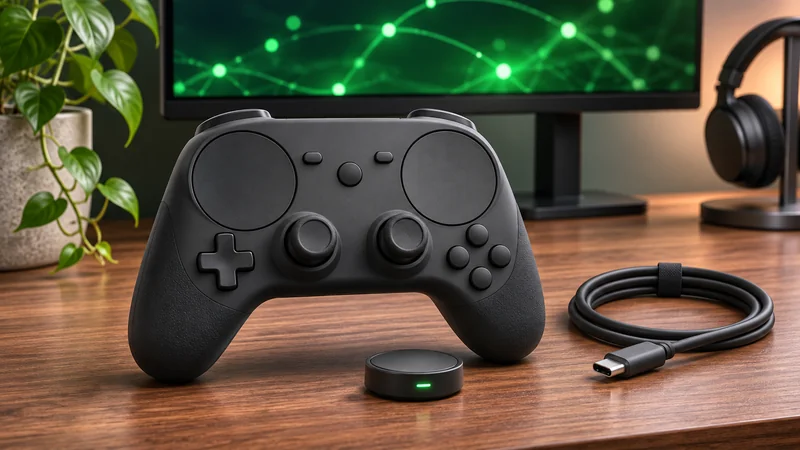
A Steam Controller 2026 setup is easier to troubleshoot when you know which connection you are testing. The controller supports Valve’s wireless Puck, Bluetooth and a wired USB-C connection. Switching between them without recording what changed can make a straightforward connection issue look much more mysterious.
This guide is specifically about the 2026 controller, not Valve’s 2015 model. It uses the current official feature and troubleshooting guide for supported connection facts. The diagnostic order below is our editorial recommendation; no hands-on latency or battery test is claimed.
1. Identify your Steam Controller 2026 setup
Start with a small inventory: controller model, computer or device, operating system and intended connection method. Keep the old controller’s support page separate from the new model’s instructions.
For a household with multiple gaming devices, name the one you are testing. “The controller stopped working” is hard to investigate if it has been paired to several machines. “It connects to this computer by cable but not by Bluetooth” already narrows the problem without requiring a complicated technical log.
2. Install offered updates before changing everything
Valve recommends updates for Steam, the operating system and controller or Puck firmware. Controller and Puck updates appear in Settings → Controller; on SteamOS, hardware updates appear under Settings → System → Hardware Updates.
Use the normal update path and allow it to finish. Do not interrupt an update to try a different cable or power down the device. Record any error message if the process fails. Avoid unofficial “firmware repair” downloads that ask you to replace files before you have checked the vendor’s own guidance.
3. Establish a wired reference point
A direct USB-C connection uses a green LED.
Our first diagnostic choice is a known-good data connection, where available. Confirm that the cable can carry data rather than assuming every charging cable is suitable. Use another input device to navigate if necessary, and check whether Steam recognizes the controller before launching a game.
If wired input works, preserve that result as your reference. It does not prove the wireless hardware is defective; it simply tells you there is a working path you can return to while testing the other method.
4. Test the Puck separately
The Puck uses Valve’s 2.4 GHz wireless connection and a white LED. Valve generally recommends it for the fastest, most reliable connection.
Choose a single receiving device for the test. If you move the receiver or change the machine, write that down so you can reproduce the working arrangement. The recommendation is Valve’s, not a benchmark measured by GameWilds. Distance, surroundings and your particular equipment still need to be assessed in your own setup.
5. Keep Bluetooth pairing distinct
Bluetooth uses a blue LED. The controller can retain Bluetooth pairing independently of its Puck pairings; the official guide also documents left and right connection slots.
Use the current guide’s exact button combinations for the mode you need. Before overwriting a pairing, identify which device it belongs to. In a multi-device setup, changing the wrong remembered connection can create a second problem while you are trying to solve the first. A short label on your own notes is enough; do not share private device details publicly.
6. Separate Steam games from non-Steam compatibility
For a non-Steam game, Valve documents Games → Add a Non-Steam Game to My Library. Compatibility varies, and games with certain anti-cheat systems, launchers or overlay limitations may not work.
Test a Steam game first if you are trying to distinguish a connection fault from a game-specific limitation. Adding a shortcut is not an ownership transfer or a promise of full compatibility. Do not disable security protections or modify anti-cheat files to force controller input through.
7. Change one condition and repeat the same test
For your Steam Controller 2026 setup, choose a simple action you can repeat: navigating a menu or performing one familiar movement in a game. Compare that action after one change. Keep notes on connection mode, recognition in Steam and recognition in the game.
If the issue occurs only during streaming, our Steam Remote Play Together guide addresses that separate workflow. Do not assume a remote-input issue means the physical controller is broken.
When to contact support
Stop escalating random fixes if the controller still fails after the documented basics. Give support the model, connection method, software versions, error text and the smallest repeatable example. Avoid posting account information or recovery codes with a public troubleshooting request.
Steam Controller 2026 setup questions
Do the instructions apply to the 2015 controller?
No. Select the support article for your exact hardware generation.
Does a successful cable test guarantee Bluetooth will work?
No. It establishes a reference connection, not the cause of a different mode’s failure.
Support guidance checked November 14, 2026. Cover is an AI-generated controller concept, not an exact official product photograph.