COD Mobile Version Too Old 74031: How to Fix the Error – GameWilds
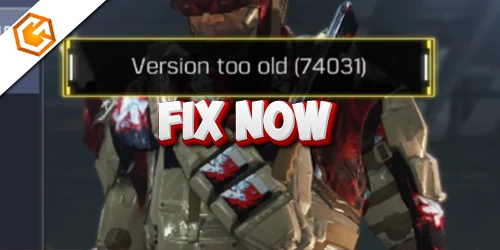
Seeing the COD Mobile 74031 error? Learn how to update the game, clear cache, and fix the outdated client issue on Android and iOS.
Table of Contents
Seeing “Version Too Old 74031” in COD Mobile means your app’s build no longer matches the game servers, often right after a patch or event. You can’t log in until you update, but sometimes the store won’t show the new version yet. Don’t panic—you’ve got a few quick checks and fixes to try, from refreshing the store to clearing cache. If you’ve already updated and still get the error, here’s what to do next.
What Does “Version Too Old 74031” Mean in COD Mobile?
When COD Mobile shows “Version Too Old 74031,” it’s telling you your app build is outdated and no longer matches the server-required version. The message means the game servers won’t accept your current client until you update. In short, call of duty mobile version too old equals incompatibility with the latest live build.
To start a cod mobile 74031 error fix, open Google Play or the App Store, find Call of Duty: Mobile, and install the newest update. This resolves most cod mobile update error prompts immediately. If you still see cod mobile version too old 74031 afterward, clear the app cache or data, then relaunch. As a deeper cod mobile outdated client fix, reinstall the app. Finally, enable auto-updates to prevent 74031 from returning.
Why This Error Appears After Updates
You now know 74031 means your client doesn’t match the server; here’s why it spikes right after updates. After a live patch or seasonal release, developers raise the minimum client version to ship content, balance tweaks, and security fixes. If you haven’t pulled the new build, the server flags cod mobile not matching server version and blocks login, causing cod mobile error 74031 after update. This hits hardest when auto-updates are off, storage is full, networks are restricted, or regional rollouts stagger availability. On Android, delays make you search how to update cod mobile android. Note that cod mobile clear cache fix won’t resolve a version threshold—cache only helps post-update hiccups. Until the store update lands, you can’t fix cod mobile server mismatch.
How to Fix COD Mobile Version Too Old 74031
To fix “Version Too Old 74031,” update Call of Duty: Mobile from the Play Store or App Store, then enable auto-update to prevent repeats. If the error sticks, clear the app cache on Android or offload and reinstall on iPhone. Restart your device and relaunch the game to finish the reset.
Update Call of Duty Mobile (Android & iOS)
Stuck with the “Version Too Old 74031” error? Your CoD: Mobile app is outdated. Update it to match the game servers.
On Android: open Google Play Store, search “Call of Duty: Mobile,” and tap Update. If you don’t see Update, pull to refresh or tap Manage apps and check pending updates. On iOS: open the App Store, search “Call of Duty: Mobile,” and tap Update. You can also find it under your profile’s Updates list.
Still getting the error after updating? Reset version files. On Android: Settings > Apps > Call of Duty > Storage > Clear Cache and Clear Data. On iOS: uninstall and reinstall the app. Then restart your device and relaunch the game. Keeping both the game and your OS current prevents compatibility issues.
Enable Auto-Update to Prevent Future Errors
Often the simplest fix is prevention: enable auto‑updates so CoD: Mobile always matches the servers and avoids “Version Too Old 74031.” On Android, open the Play Store, visit the Call of Duty page, tap the three‑dot menu, and turn on Auto‑update (set Wi‑Fi or cellular in system settings if you want faster updates).
On iOS, open the App Store, find Call of Duty, and ensure automatic updates are on—either from the app’s page or in Settings > App Store > App Updates. With auto‑updates enabled, your client stays aligned with server requirements, reducing lockouts after new releases.
- Keep updates on Wi‑Fi by default, or allow cellular for immediate patches.
- If the error persists, manually check the store for a pending update.
- After an auto‑update finishes, relaunch the game to sync.
Clear App Cache (Android)
Kick things back into gear by clearing CoD: Mobile’s cache on Android, which flushes outdated temporary files that can trigger the “Version Too Old 74031” error. It’s fast, safe, and won’t touch your account data.
Do this: open Settings > Apps > Call of Duty: Mobile > Storage, then tap Clear cache. Relaunch the game and check if the error disappears. If the issue persists, return to the same menu and choose Clear data (or Clear storage) to reset local files. Before you do, make sure your account is linked to Google or Activision, since you’ll need to log in again and re-download assets.
After clearing cache or data, restart your device. Open the Play Store, confirm CoD: Mobile is fully updated, then launch the game.
Offload & Reinstall (iPhone Fix)
If you’re on iPhone and still seeing “Version Too Old 74031” after updating, use Offload App to refresh the game without losing progress. Offloading removes the Call of Duty app binary but keeps your data and settings, forcing the App Store to fetch the latest compatible build.
Do this:
- Open Settings > General > iPhone Storage > Call of Duty > Offload App. Then tap Reinstall App from the same screen.
- Ensure iOS is current and you’ve got 1–2 GB free to prevent install failures.
- After reinstall, launch the game and confirm you’re signed into the correct Activision or Apple account.
If the message persists, you may need to fully delete and reinstall (this removes local data) or recheck your account login. Offloading first usually resolves the 74031 version mismatch.
Restart Your Device
Power down and start fresh with a full reboot to clear hung services and reload COD Mobile’s updated files. After you install any available update, turn the device off, wait 10–15 seconds, then power it back on. This forces background services and temporary processes to close, preventing an interrupted validation from triggering the “Version Too Old 74031” prompt.
Once you’re back up, open the Play Store/App Store first to confirm COD Mobile shows the latest version, then launch the game. A reboot also refreshes cached network connections, so the client stops pinging outdated update endpoints that can misreport the error.
If it still appears, clear the app cache/data (Settings → Apps → Call of Duty → Clear cache/data), reboot again, and relaunch. This ensures the client recognizes the update.
Check Server Status
Before you dive into fixes, confirm the servers aren’t the culprit. The 74031 error often appears during outages or maintenance, even if your app’s updated. Check the official Call of Duty: Mobile Twitter/X (@CODMobile) and the website status page for real-time notices, including downtime windows and resolution ETAs. Then visit Activision Support’s server status page and third-party trackers like DownDetector to see regional spikes and timestamps. If those show green but you still get 74031, scan Reddit’s r/CallOfDutyMobile for localized issues.
- Review official posts for maintenance schedules and wait for restoration notices before troubleshooting.
- Compare timestamps across sources to distinguish regional outages from device issues.
- If servers look healthy, proceed with app updates, cache/data clear, and a fresh launch.
COD Mobile 74031 Error After Updating – What to Do?
Even after you’ve updated COD Mobile, error 74031 can stick because your app isn’t fully syncing with the latest server build. Start by reopening the Google Play Store or App Store, searching “Call of Duty: Mobile,” and confirming there’s no Update button. If an update appears, install it, then relaunch the game.
If the store says you’re current but the error persists, force a clean sync. On Android, go to Settings > Apps > Call of Duty > Storage and tap Clear cache, then relaunch. If that fails, repeat and tap Clear data, then open the game to redownload assets and sign in again. On iOS, reinstalling accomplishes the same reset. This update-first, then reset approach typically clears the 74031 block.
How to Avoid the 74031 Error in the Future
Now that you can clear 74031 after an update, keep it from coming back by staying current automatically. Enable automatic updates for Call of Duty: Mobile in Google Play or the App Store so you always match the game servers. Also allow background app refresh on iOS or Wi‑Fi updates on Android to pull down big patches without you watching the store. When in doubt, follow a quick sequence: update first, then clear cache/data if the error persists.
Stay ahead of error 74031: enable auto‑updates and background refresh, then clear cache if needed.
- Enable auto‑updates specifically for Call of Duty: Mobile in your app store settings.
- Allow background app refresh (iOS) or Wi‑Fi updates (Android) so large downloads complete automatically.
- If version errors persist, clear cache/data (Settings → Apps → Call of Duty → Clear cache/Clear data), then relaunch and recheck the store page.
Frequently Asked Questions
How Do I Update My COD Mobile to the Latest Version?
Open your app store, search “Call of Duty: Mobile,” and tap Update. If no update appears, free storage and update your OS. Still stuck? Clear cache/data or reinstall. Enable auto-updates to get new patches immediately.
Why Won't My COD Mobile Update?
It won’t update because your store hasn’t refreshed, auto-updates are off, or the rollout hasn’t reached your region. Refresh the Play Store/App Store, enable auto-updates, then clear cache/data or reinstall, and restart the game.
What iOS Is Needed for COD Mobile?
You generally need iOS 12.0 or later, but some recent updates require iOS 13.0+. Check the App Store’s Compatibility section for your exact version. If your device’s iOS can’t update, you’ll need a newer device.
Is There a Problem With Call of Duty: Mobile Today?
Yes, there might be. You should update the app in Google Play or the App Store. If it persists, clear cache or data, restart, and try again. Enable auto-updates, then check official channels for outages.
Conclusion
You’re seeing “Version Too Old 74031” because your app’s behind the server’s build. Update COD Mobile from your app store, or wait if the rollout hasn’t reached your region. If the update doesn’t show or the error lingers after updating, refresh the store, clear the app cache/data, or reinstall (with your account linked), then restart your device. To avoid future lockouts, enable auto‑updates and check for patches after major events. Stay current, and you’ll get back in fast.
