PUBG Mobile Controller Support: Android & iOS Guide – GameWilds
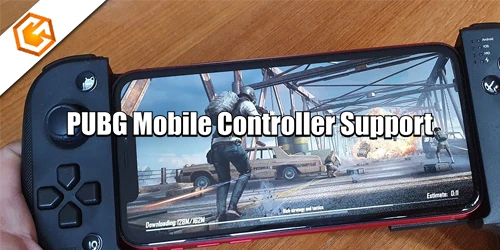
Does PUBG Mobile support controllers? Learn what works on Android and iOS, setup steps, risks, and the best alternatives.
Table of Contents
You’ve probably wondered if you can plug in a Bluetooth controller and jump into PUBG Mobile like a console shooter. The short answer isn’t what you’d expect. Official support is limited, workarounds exist, and some can even flag your account. Before you buy a gamepad or install a mapping app, you’ll want to know what actually works, what’s risky, and what options PUBG itself allows next.
Does PUBG Mobile Have Controller Support?
Short answer: not natively. PUBG Mobile designs controls for touch, so you don’t get official pubg mobile controller support on Android or iOS. If you want a controller for pubg mobile, your options are workarounds. You can try third-party apps that map buttons, but they’re unsupported, sometimes need risky permissions, and have led to flags or bans. A safer hardware option is pubg mobile triggers; they clip on and physically tap the screen, so they don’t alter software.
If you play on PC, an emulator controller works through official emulators, but you’ll match against other emulator players. Some Bluetooth pads may partially function, yet mappings and aim behavior vary by device and update. Always check current patch notes and device settings before committing.

Can You Play PUBG Mobile With a Controller?
Cut through the hype: you can play PUBG Mobile with a controller, but not natively on Android or iOS. There’s no official Bluetooth gamepad controller support, so a true “plug-and-play” PUBG Mobile controller experience on phones isn’t built in. Instead, you’ve got three practical paths.
First, use third-party key-mapping apps that translate gamepad inputs into touch actions. These can work but often require invasive permissions and can risk flags or bans. Second, run the game on a PC emulator and use an emulator controller profile; Gameloop or BlueStacks offer stable mapping and clearer rules. Third, go low-risk with clip-on trigger attachments that tap the screen mechanically, keeping you within touch controls. Weigh convenience against security, matchmaking, and potential enforcement before you commit.
PUBG Mobile Controller Support on Android and iOS
You’ll compare Android controller options and iOS controller options to see what actually works today. On Android, you can try Bluetooth pads, keymapping apps, or physical clip-on triggers—but unsupported methods carry stability and ban risks. On iOS, options are more limited, so stick to Apple-certified controllers or triggers, and always check the latest patch notes before buying.
Android Controller Options
Kicking things off on Android, PUBG Mobile doesn’t offer native controller support, so Bluetooth pads only work through workarounds. If you want a PUBG Mobile controller, your main Android controller support paths are controller mapping apps, hardware triggers, or emulators.
Mapping apps like Octopus or Panda Gamepad Pro overlay touch input onto sticks and buttons. They often need special permissions, developer mode, or even root, and they can cause crashes, lag, or bans if flagged by anti‑cheat. Use them at your own risk.
Prefer safer options? Go with physical trigger clips or clamp‑on phone gamepads that simulate touches without software. Rebind layouts in Customize Buttons to match your hardware. For the cleanest experience, use emulator controller support via Gameloop or BlueStacks, which officially recognize controllers and reduce detection issues.
iOS Controller Options
On iOS, PUBG Mobile doesn’t offer native controller support, and that mirrors the limitations you’ll see on Android. You can pair Bluetooth pads, but you’ll rely on iOS controller workarounds. Third‑party mapping tools translate button presses into touch inputs, yet they’re finicky, crash‑prone, and often require tedious setup. Worse, they’re unsupported, so there’s an account ban risk if detection triggers. If you want safer help, use trigger attachments; they clip on, tap the screen mechanically, and don’t modify software. For full controller support, consider an emulator alternative on PC, where controllers are officially handled.
| Option | Pros | Cons |
|---|---|---|
| Third‑party mapping | Full button maps | Instability, bans |
| Workaround apps | Custom layouts | Complex setup |
| Trigger attachments | Low risk | Limited input |
| Official iOS | Simple | Not supported |
| Emulator alternative | Guaranteed support | PC required |
How to Use a Controller With PUBG Mobile
Although PUBG Mobile doesn’t offer native controller support on Android or iOS, you still have a few workable paths: use a third‑party keymapper to translate controller inputs into touch controls, clip on physical trigger attachments for a no‑software solution, or play through a PC emulator like Tencent Gameloop or BlueStacks for built‑in controller support and fair matchmaking. To use a PUBG Mobile controller on phone, install a third-party keymapper like Panda Gamepad Pro, grant required permissions (often via PC activation), then map buttons to on‑screen actions. Expect possible stability issues and detection risks. For zero software, mount phone trigger attachments and align them with fire/aim buttons. For the safest route, play on an emulator, enable controller support, calibrate sensitivity, and accept emulator‑only matchmaking. Proceed cautiously.
Best Alternatives to Controllers
If you want a simple, reliable upgrade, use trigger attachments to map fire and aim without any apps or ban risks. For more control, consider emulator options on PC, which let you use a gamepad or keyboard‑mouse with official‑like support. We’ll compare the pros and cons so you can choose the setup that best fits your playstyle and device.
Trigger Attachments
Looking past full controllers, trigger attachments give you a simple, legal edge in PUBG Mobile without any software hassle. These hardware clips act as physical triggers that tap your on‑screen fire and aim buttons, delivering no-software compatibility across iOS and Android. The COOBILE Mobile Game Controller is a popular 3‑in‑1 pick: alloy triggers, a phone grip, and 4‑finger operation with a 180° flip to keep your screen accessible.
Setup is quick: open Settings → Customize Buttons, drag the fire and aim icons under the trigger pads, then save your layout. You’ll shoot while moving, using thumbs for camera/joystick and index fingers for the triggers. Most units are lightweight, inexpensive, and clip on securely. Because they don’t modify software, they avoid ban risks from mapping apps while still boosting control.
Emulator Options (Pros & Cons)
While you might prefer a handheld feel, running PUBG Mobile on a PC emulator is the cleanest alternative to phone controllers. With Tencent Gameloop, BlueStacks, or LDPlayer, you get native controller support and safe keymapping—no risky third‑party tools. You’ll only face other emulator users thanks to emulator matchmaking, so you won’t overwhelm touch players.
Pros: lower input latency than phone keymappers, tighter aim and movement, flexible binds, and minimal ban risk because controller on PUBG Mobile via PC is an expected workflow. It’s also easier to tune sensitivity and graphics.
Cons: you lose the mobile vibe, and PC hardware matters—weak CPUs/GPUs stutter. Outdated or modified clients can trigger detection issues. Keep emulators updated, verify settings after patches, and test your controller before ranked.
Will PUBG Mobile Add Controller Support in the Future?
Don’t count on full native controller support landing soon in PUBG Mobile. Despite community demand, PUBG Mobile still lacks official controller support on Android and iOS, and Tencent hasn’t shared a timeline. Developers cite touch-first design and fairness as priorities. When players resort to third-party mapping, reports of flags and bans continue, which further discourages policy changes.
If you want sticks and triggers today, your most reliable path is an emulator like Gameloop or BlueStacks, where controller input is supported and you match other emulator users. Tencent added controller support to Call of Duty Mobile, proving it’s feasible, but PUBG Mobile’s anti-cheat and matchmaking constraints make broad rollout unlikely. Keep an eye on patch notes, but plan around touch controls or emulator play for now.
Frequently Asked Questions
Does PUBG Mobile Have Controller Support in 2025?
No, you don’t get official controller support on mobile in 2025. You can use emulators with controllers on PC, or try clip-on triggers. Avoid third‑party keymappers; they’re unsupported, risky, and can trigger bans or restricted lobbies.
How to Play PUBG Mobile With Controller Reddit?
You can play with a controller by using an Android emulator (Gameloop/BlueStacks), or clip-on triggers. Avoid key-mapper apps; they risk bans and permissions. Save a custom HUD, align fire buttons, tune sensitivity, and check patch notes.
How to Enable Controller on Pubg?
You can’t enable it natively in-game. Use Android key-mapper apps or system remapping, but expect risks and setup hoops. Safer: clip-on triggers. For full controller support, play via official PC emulators or cloud services. Always check patch notes.
How to Play PUBG Mobile With a PS4 Controller on iPhone?
You can pair a PS4 controller via Bluetooth, then use a third‑party iOS keymapper to emulate touches. Expect instability, lag, and possible bans. For safety, use physical trigger clips and customize on‑screen controls in PUBG’s settings.
Conclusion
Bottom line: PUBG Mobile doesn’t natively support Bluetooth controllers on Android or iOS, so expect touch controls by default. You can still play with a controller via PC emulators, third‑party key mappers, or mechanical triggers, but each option has tradeoffs—like unstable performance, possible bans, or emulator‑only matchmaking. If you try them, proceed carefully and watch official patch notes. For most players, mastering touch or using simple trigger attachments is the safest, most consistent way to win.