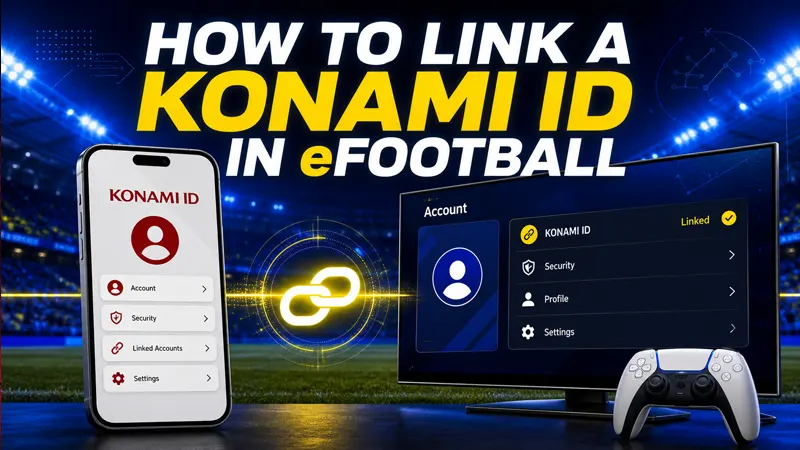
To link a KONAMI ID in eFootball gives the account an official identity for supported data-transfer and online services. It is worth doing before replacing a phone, reinstalling the game or troubleshooting a device. Use only menus inside eFootball and pages on Konami’s real domains.
Before you link the account
Confirm that eFootball is updated from the official app store or platform store. Use an email address you control long term and secure that mailbox with a unique password and two-step verification.
A KONAMI ID is separate from an Apple, Google, PlayStation, Xbox or Steam account. Linking one does not automatically make every platform’s data interchangeable. Konami’s current data-transfer rules and the message shown in-game determine what can move between devices.
How to Link a KONAMI ID in eFootball
Open eFootball and enter the Extras, Support or account-linking area shown by your version. Choose Link Data or Link KONAMI ID. The game opens Konami’s sign-in page where you can log in or create an ID, review the connection and return to the game after authorization.
Menu labels can change between mobile and console editions. If the option is not visible, check the official eFootball support page for your platform instead of following a video that may show an older interface.
- Launch the official eFootball app.
- Open Extras or Support.
- Choose Link Data or Link KONAMI ID.
- Sign in on the official Konami page.
- Approve the connection and return to the game.
- Confirm that the linked status appears in the account menu.
Creating a new KONAMI ID safely
Register through Konami’s official account portal and provide accurate age and region information. Complete the email verification message, then store the recovery details securely. Do not reuse the same password from a game forum or fan website.
Check the address bar before typing a password. A page copied to resemble My KONAMI can steal the email and verification code. Password managers are useful because they usually refuse to autofill on a lookalike domain.
Using Data Transfer on another device
You normally need to link a KONAMI ID in eFootball before using supported Data Transfer features on another device.
Install eFootball on the destination device, open the title screen and select Data Transfer before beginning a new account when instructed. Sign in with the KONAMI ID linked to the original game data and review the confirmation carefully.
Do not repeatedly create fresh profiles while troubleshooting. That can make it unclear which local data should be retained. Capture the owner ID and relevant account information before changing devices, but keep screenshots containing private data out of public posts.
Coins and platform restrictions
Paid and free currency may be subject to platform, operating-system or regional restrictions. Linking an ID does not guarantee that every currency balance or purchase appears on a different ecosystem. Read the transfer warning displayed by the game before continuing.
Keep purchase receipts from the official store. They can help Konami investigate a missing transaction, but they should be shared only through official support channels.
What to do when linking fails
First verify the email address and password directly at the official KONAMI ID portal. Check the inbox and spam folder for verification messages, confirm that the game is updated and retry on a stable connection.
If the ID is already linked, do not attempt to buy a replacement account or unlink services through an unofficial tool. Contact Konami Support with the player ID, device type and a concise explanation. Never send the support agent a password or one-time code.
Protect the linked account
Enable every security option offered for the KONAMI ID and connected email account. Ignore messages promising free eFootball Coins in exchange for linking credentials. Review authorized services periodically and sign out of shared devices.
Account linking is valuable only when the recovery channel is secure. Losing the email account can make game recovery far more difficult.
Frequently asked questions
Does a KONAMI ID transfer eFootball data between every platform?
Not automatically. Transfer eligibility and currency restrictions depend on the platforms and Konami’s current rules.
Should I select Data Transfer before starting on a new phone?
Follow the title-screen transfer flow before creating unrelated local progress on the destination device.
Can support ask for my password?
You should never send a password or one-time authentication code. Use only official support forms.
After you link a KONAMI ID in eFootball, confirm that the account menu displays the linked status before changing or resetting your device.
Official resources
Explore more on GameWilds: eFootball guides.