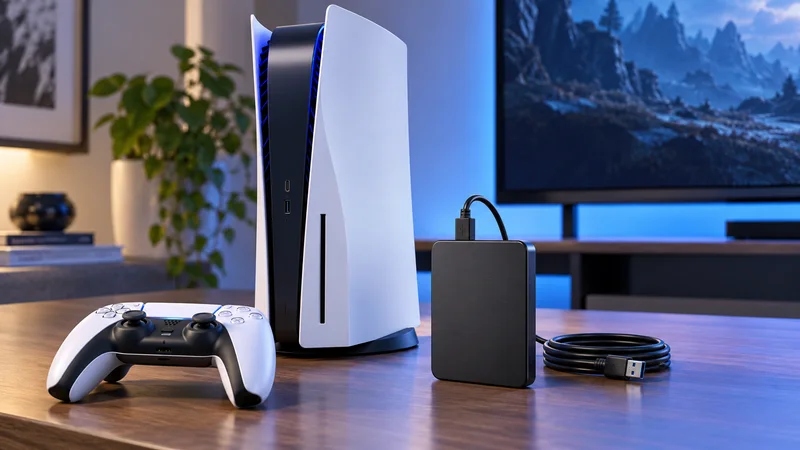
PS5 USB extended storage can free space without forcing you to download every large game again. The key limitation is straightforward: PS4 games can run from a compatible USB extended drive, but PS5 games must be copied back to console storage or compatible M.2 storage before you play them.
That makes an external drive useful as a game archive, not a direct substitute for every SSD upgrade. These seven tips explain how to decide what belongs where, avoid unnecessary formatting, and keep your next play session simple. Start with the storage you already own rather than assuming you need to buy another accessory.
1. Give each storage location a clear job
| Location | Practical role |
|---|---|
| Console storage | Keep the PS5 games you are currently playing ready to launch. |
| Compatible M.2 SSD | Additional space that can also run PS5 games. |
| USB extended storage | Archive PS5 installations and store playable PS4 installations. |
Before moving anything, make a short list of your current games, occasional games, and finished games. The first group deserves convenient access; the last group is a better candidate for an archive. This planning step is more useful than moving files at random until the storage warning disappears.
Sony’s storage-management guide also distinguishes installation data from saved data. Moving a game installation is not the same operation as backing up your progress.
2. Check PS5 USB extended storage compatibility
Sony specifies SuperSpeed USB at 5 Gbps or faster and a capacity between 250 GB and 8 TB. Connect the drive directly, not through a USB hub. Only one USB extended storage drive can be used at a time, and meeting the headline specifications does not guarantee every device will work.
Check the exact model you own, its cable, and the console’s supported USB connection before shopping. An attractive capacity number tells you little about whether a particular setup meets the requirements. Keep the original purchase information available if the drive needs manufacturer support.
3. Treat formatting as a destructive decision
Formatting erases the drive. Before using PS5 USB extended storage for the first time, inspect the drive on the device where you previously used it and copy any important files elsewhere. Do not continue if you are unsure which connected drive the console has selected.
A drive already formatted as extended storage on PS4 or another PS5 does not need another format simply because you connect it to this console. Follow Sony’s USB extended storage instructions, including the port and formatting guidance for your setup.
Keep this step separate from ordinary game moves. Formatting should never become your default answer to a full drive or an unfamiliar message. Read the message, identify the device, and preserve anything irreplaceable first.
4. Move games around your real playing schedule
From Game Library, highlight the installation, press Options, and choose Move Games and Apps. Select the destination and content carefully, then let the transfer finish. If you also use M.2 storage, pay attention to the destination tab rather than assuming the first choice is USB.
Prioritize games you have finished or are unlikely to play this week. Leave the title you use with friends on readily playable storage. A little organization prevents the frustrating routine of arranging a session and only then discovering that its PS5 installation needs copying back.
5. Copy a PS5 game back before launching
For PS5 games archived on USB, use the Library’s installed-content listing, highlight the title, and choose Copy to return its installation to playable storage. Make sure the destination has enough room before you begin. The exact wording can vary with the console interface.
Try the routine with one game before moving a large collection. Check that you can find it, copy it back, and launch it normally. This small test makes the process familiar and highlights misunderstandings while only a single installation is involved.
6. Keep save protection separate from storage cleanup
Do not delete saved data merely to make room for another game. First check which category is using space and whether you are looking at an installation, a capture, or progress. Different kinds of data deserve different decisions.
For example, a finished campaign might be a good candidate for moving its installation, while its save remains valuable for a future replay. Before removing media, review your own clips and preserve the ones you actually want. A calm review is safer than selecting a large mixed batch just to reclaim space quickly.
If you need more room for PS5 games that remain immediately playable, compare that goal with Sony’s M.2 SSD guidance. USB archiving and adding playable SSD space solve related but different problems.
7. Remove the drive safely
When disconnecting while the console is on, use Settings, Storage, USB Extended Storage, then Safely Remove from PS5. Alternatively, wait until the console’s power indicator is completely off before disconnecting. Do not pull the cable during a move or format.
Keep the cable where it will not be tugged accidentally. After moving your setup, check connections before starting a long session. Treat repeated disconnections as a fault to investigate rather than accepting them as normal behavior.
Is PS5 USB extended storage worth using?
It is useful when you want an archive of PS5 installations or convenient storage for compatible PS4 games. It is not the right answer if your only goal is launching additional PS5 games directly from an external USB drive.
Choose around your habits: a small active library with an archive suits some players, while others want more immediately playable SSD space. Browse our platform guides and practical gaming help for related setup questions. A tidy PS5 USB extended storage routine should reduce interruptions, not create another chore before every session.