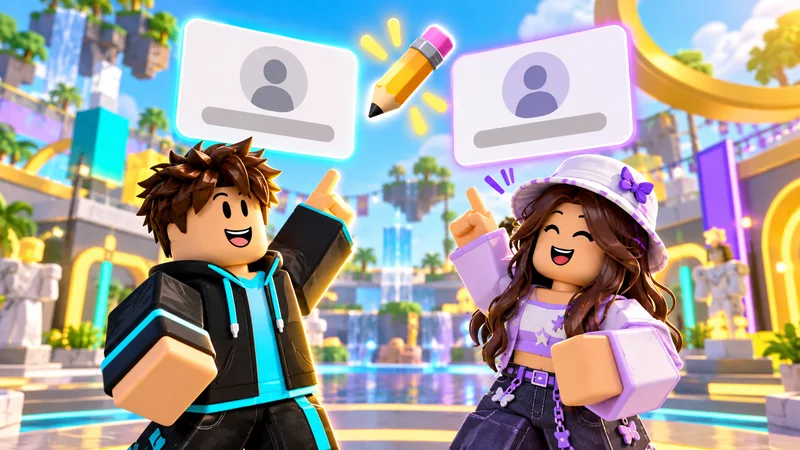
A Roblox display name is the customizable name other players see alongside your username. Changing it is free, but it is not the same as changing the unique username that identifies your account. Roblox limits display-name changes to once every seven days, so check the spelling and the account before saving.
This guide explains the difference, the official settings path, and the practical checks that prevent an unnecessary paid username change. It also covers what to do if another player uses the same name or if a creator has a Verified Badge. You do not need a name-changing website, an extension, or another player to make the change for you.
1. Choose the correct kind of name change
| Field | What matters |
|---|---|
| Display name | Free to change, not necessarily unique, and subject to a seven-day change limit. |
| Username | Your unique account identifier; changing it requires Robux. |
If your goal is simply to appear under a different nickname, start with the display-name field. Do not buy a username change because you assume that every visible name costs money. Read the label beside the edit control and the final button before proceeding.
The official username guide explains the paid alternative. It also notes that previous usernames remain visible through relevant profile and search features. A new username should not be treated as a way to erase account history.
2. Plan your Roblox display name before opening settings
Write down two or three nickname ideas and choose one you will still like next week. Read it aloud, check for accidental meanings, and consider how it looks without relying on a special font. A short, readable name is easier for friends to recognize than a string of look-alike characters.
As a practical safety habit, avoid including your school, address, phone number, or other details that make a casual gaming profile unnecessarily identifying. You can express a hobby or style without turning a nickname into a personal biography.
Do not copy the identity of a creator or support representative. A name that is easy to recognize is useful; one that is designed to confuse other players creates avoidable problems.
3. Open the official account settings
Sign in to Roblox and go to Settings. On the website, Roblox points users to the gear icon; on mobile, its support guide directs users to More. Select Account Info, then choose the display-name edit control, shown as a pencil-and-paper icon. Some accounts may label this field simply Name.
Check the account you are editing, especially if a family shares the device or you use more than one account. If the identity is not the one you expect, stop before changing anything. You should not need to give your password to a friend to find this setting.
4. Read once more, then save
Enter the intended Roblox display name and choose Save. Refresh the profile to confirm the visible result. Roblox’s display-name instructions are the reference for the current process and naming rules.
Before the final click, compare the text against your chosen spelling. Check repeated letters and characters that resemble one another. The seven-day limit makes a quick proofreading pass worthwhile: an avoidable typo can otherwise remain your visible nickname until another change becomes available.
If a message appears, read its exact wording instead of trying many random variations at once. Names are filtered under the platform’s standards. Do not use altered spellings to evade a moderation rejection.
5. Help friends recognize the right profile
Roblox allows more than one player to use the same display name, and both display names and usernames can be visible. That means matching nicknames are not proof that two profiles belong to the same person.
When arranging to play together, ask a friend to confirm your actual profile through an established channel. Check the username as well as the nickname before accepting an unfamiliar request. A matching avatar or familiar display name is a useful clue, not a complete identity check.
Roblox’s username help page explains that the profile shows @username beneath the display name. If you cannot remember the account identifier, use that official guidance instead of guessing a new account into existence.
6. Check Verified Badge implications if relevant
Most players can skip this specialist check, but verified creators should not. Roblox’s Verified Badge FAQ says changing a display name or username can revoke the badge. Its re-grant guidance includes contacting support and meeting its stated conditions; do not assume the badge will immediately return after another edit.
Read the official Verified Badge FAQ before rebranding an established creator account. Plan communications with your audience separately from the settings change so people can identify the genuine profile.
7. Troubleshoot the field, not the whole account
If you changed the Roblox display name recently, consider the seven-day restriction first. If the change is saved but a particular view appears old, compare your refreshed profile before assuming the entire account is broken. Record the exact message and where it appears if you need support.
A cosmetic naming problem is not a reason to share login codes, install an unlock tool, or pay someone promising to bypass the limit. Keep the issue focused and use official support if the interface does not behave as described.
What should you check before changing a Roblox display name?
- Is this the correct account and the free display-name field?
- Is the spelling readable and free of private details?
- Are you comfortable keeping it for at least seven days?
- Will friends know which username belongs to you?
- Does a Verified Badge require extra planning?
For related help, visit our Roblox coverage and gaming guides. A carefully chosen Roblox display name should make your profile easier to recognize without confusing it with a different account or a paid username change.