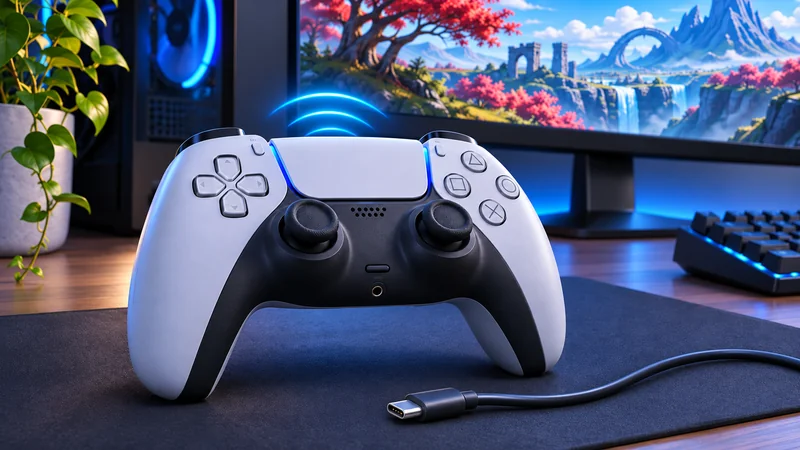
Using DualSense on PC involves two separate checks: whether Windows detects the controller, and whether the game supports the features you want. Successful Bluetooth pairing does not prove that haptics, adaptive triggers or a particular button layout will work in every game.
Start with a simple connection and add complexity only after you have a working baseline. The following checks use Sony’s official instructions and distinguish controller setup from individual game support. They do not require opening the controller or installing an unknown driver package.
1. Identify the result you want from DualSense on PC
Decide whether you need ordinary buttons and sticks, wireless convenience, or specific immersive effects. Those are different goals. A controller can provide useful basic input even when one optional effect is unavailable.
Sony’s supported-device guide lists Windows 10 64-bit and Windows 11 for USB and Bluetooth connections. It also makes clear that features depend on the device and game. Check your actual game before buying an adapter or concluding the controller is defective.
2. Establish a wired connection first
Connect the controller to a compatible PC USB port with a USB cable that has a Type-C connector at the controller end. For troubleshooting, our recommendation is to begin directly at the computer rather than adding several hubs and extensions at once.
If the controller only appears to charge, try a known working data-capable cable and another port. Change one part at a time. Keep the first successful combination as your baseline; otherwise a new cable, hub and game setting can create three possible explanations for the same result.
Do a short input test in a game that documents controller support. If basic input works over USB but not wirelessly, investigate pairing separately instead of changing a game installation that already accepts the wired controller.
3. Pair Bluetooth with the controller disconnected from USB
Sony instructs you to turn the controller off and disconnect USB, then hold Create and PS until the light bar flashes. Enable Bluetooth on the PC, add a device and select the controller from the detected list.
Watch for the connection confirmation rather than assuming a flashing light means pairing is finished. If you have used the controller with several devices, check which one is receiving the connection. Avoid repeatedly changing settings in a game while the controller is actually connected elsewhere.
For DualSense on PC, wireless success is best tested with the same game you used over USB. That comparison narrows the problem without making you learn another game’s controls at the same time.
4. Verify feature support rather than promising every effect
Sony says adaptive triggers require game support. Its PC guidance says haptic feedback requires USB, and the headset jack requires a wired connection on PC. Bluetooth pairing alone is therefore not a test of every advertised feature.
Check the game’s own documentation when a particular effect is missing. Different titles can expose different settings and levels of support. A basic input success and an absent special effect are not contradictory results.
Our advice is to keep a short feature list for the game you actually play. “Buttons work; desired effect not confirmed” is more precise than “the controller does not work.” It also helps you decide whether a wired connection is worth using for that title.
5. Check the Steam game’s controller listing
Sony directs Steam users to the Controller Support information on the game’s store page. Do not treat a generic controller badge as a promise that every DualSense feature is present.
After confirming the game’s support, review its input options and any controller configuration you already use. Do not stack several remapping tools as a first response. Our troubleshooting recommendation is to return to one understood configuration, test, and only then change a setting deliberately.
If the problem is unwanted stick movement rather than connection, our safe stick-drift guide addresses that different symptom. Pairing again cannot be assumed to repair a physical control problem.
6. Update through PlayStation Accessories
The official PlayStation Accessories app supports firmware updates for DualSense and DualSense Edge. Profile customization in that app is an Edge feature, not an identical standard-DualSense capability.
Use Sony’s download page, follow the app’s prompts and do not disconnect the controller or turn off the PC during a firmware update. If updating several controllers, Sony says to update one at a time. Keep enough uninterrupted time available rather than beginning an update just before shutting the computer down.
7. Record the working configuration before changing more
Once DualSense on PC works, note the game, USB or Bluetooth connection and any special settings. If another title behaves differently, compare its documented support before replacing hardware. Repeating a successful baseline is a faster diagnosis than resetting everything.
If you want to capture an input problem for a support request, our Steam recording guide explains saving a short clip. Keep account names or private chat out of anything you share publicly.
DualSense on PC FAQ
Does Bluetooth guarantee haptic feedback?
No. Follow the game’s feature support and Sony’s connection requirements rather than inferring full functionality from pairing.
Do I need a third-party driver to start?
Begin with Sony’s documented USB or Bluetooth connection. This guide does not require an unknown driver or remapping download.
Best order: establish basic USB input, test pairing if needed, check game-specific features, and update through the official app. That separates connection faults from unsupported effects.