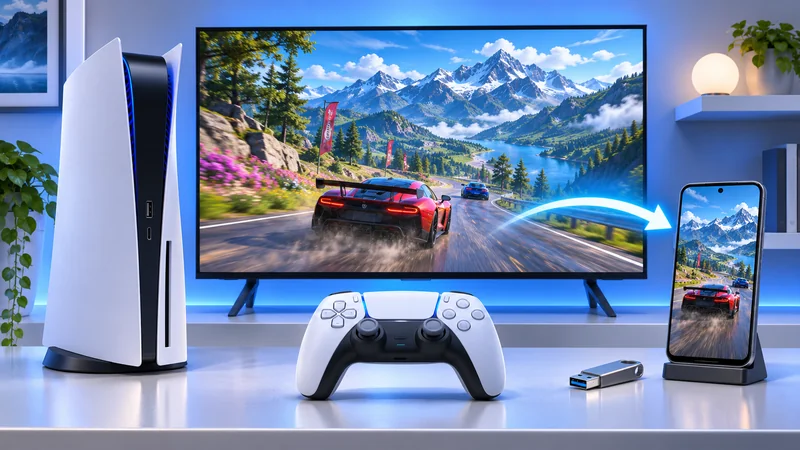
PS5 captures can move from a good moment in a game to a clip on your phone, but the PlayStation App is not a permanent archive of everything in Media Gallery. Choose the transfer route around the file you actually have: a supported short clip, an older recording or something you want to preserve independently.
This guide follows Sony’s support instructions and separates three jobs: creating a capture, transferring a copy and sharing it with someone else. Completing one does not automatically complete the others.
1. Find the PS5 captures you want to keep
Open Media Gallery from the console’s games home. Sony’s Media Gallery guide documents sorting, filtering, game albums and viewing captures full-screen. Use those controls to identify the right file before copying a whole collection.
Check the actual clip, not just its thumbnail. Does it include the moment you wanted, and is the audio appropriate to keep? Finding an empty lead-in or an unwanted conversation now is easier than discovering it after you have shared the file publicly.
2. Enable app uploads with the right account and connection
In Sony’s PS App capture instructions, the console must be linked to the app. For automatic uploads, Sony lists rest mode with Stay Connected to the Internet enabled. In the app, use Library, Captures, Enable. On PS5, use Settings, Captures and Broadcasts, Captures, Auto-Upload.
Check that the phone and console show the intended account before troubleshooting a missing file. On a shared console, another player’s gallery activity can otherwise make an account mismatch look like an upload failure.
3. Check the clip limits before expecting an upload
Sony lists non-4K clips up to 1920×1080. Choose a newly created clip shorter than three minutes to stay within its stated upload requirements. The app keeps eligible captures available for 14 days after creation; PlayStation Plus is not required.
A long or higher-resolution recording missing from the app is not proof that it has vanished from the console. Check Media Gallery and choose another transfer method. PS5 captures created before enabling automatic uploads also should not be assumed to appear retroactively.
4. Use manual upload and download deliberately
Sony documents highlighting a capture in Media Gallery, pressing Options and choosing Upload to PlayStation App. For an available capture in the phone app, use Library, Captures, then Download to save a device copy.
After downloading, open that local copy and verify that it plays. The app’s temporary availability is not the same thing as a file saved where you can find it later. Give important clips a useful name or place them in a clearly identified album on your device.
5. Use USB when you want a separate file copy
With an appropriate USB storage device connected, Sony’s Media Gallery instructions give the route: select the capture, open More and choose Copy to USB Drive. You can use the gallery’s multiple-selection control for a group of captures.
Copy a small test first and confirm it opens on the device where you intend to store it. Then copy the rest. Do not remove the only original while you are still unsure whether the destination files are intact.
Media transfer is different from moving installed games. Our PS5 USB extended-storage guide explains that separate purpose. A drive being useful for one task does not mean every storage workflow is interchangeable.
6. Review voices and personal details before sharing
Sony’s capture-settings guide explains microphone and voice-chat inclusion and advises asking other voice-chat members before including their voices. Review the recording’s audio, not just its picture.
Also look for private notifications, party messages and account information. A clip intended for one friend may reveal more when posted publicly. Keep the original privately, then prepare a version appropriate for its actual audience.
7. Keep captures separate from game-save backups
PS5 captures preserve images and video, not the playable state of your game. A successful clip transfer does not demonstrate that a save is protected. Keep your media archive and your game-progress plan distinct.
If you use more than one console family, our Xbox captures backup guide covers its different workflow. Do not apply another platform’s retention period to Sony’s app.
A repeatable routine: select the right PS5 captures, choose app or USB according to the file, verify the destination copy and review privacy before sharing. A few checks now prevent a temporary app view from becoming your only archive.