How to Make Someone a Trusted Connection on Roblox – GameWilds
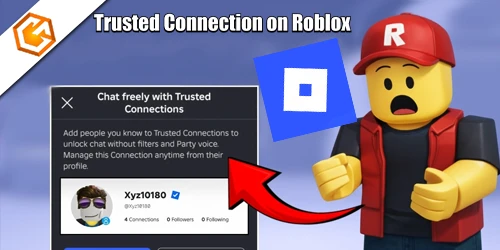
Step-by-step guide to adding Trusted Connections on Roblox, unlocking Party Voice and chat without filters, plus safety rules and age verification details.
Table of Contents
Want to make someone a Trusted Connection on Roblox? You’ll need to verify your age first, then use an approved real-life method like Contact Importer or a live QR scan to confirm you actually know them. Teens have a few extra rules, and not every add counts. Do it right, and you unlock features regular Connections don’t get. Here’s exactly how to set it up—and what to avoid—so you don’t miss out.
What Are Trusted Connections on Roblox?
Trusted Connections are a special tier of Roblox friends that unlock less‑restricted features—like Party Voice and lighter chat filters—when both of you are age‑verified (13+). You’ll see roblox trusted connections when you and a friend have completed roblox age verification and meet eligibility rules. They’re designed for people you actually know, giving you safer, more expressive interactions.
For trusted connections roblox 13-17, you can connect through Contact Importer, a live QR scan, or a mutual opt-in with eligible teen friends. If you’re 18+, adding teens must happen through real‑life channels like Contact Importer or live QR scanning to confirm familiarity. Wondering how to add trusted connections on roblox? Eligible friends convert automatically once both are verified. Need to change course? Use profile options for how to remove trusted connections roblox.
Prerequisite – Age Verification Required
Before you can turn friends into Trusted Connections, you need to verify your age on Roblox. Complete age verification in Settings under Account or Verification. Choose a method: a selfie video persona (fast age estimation) or a government ID check. Until you’re age‑checked, every friend stays a regular Connection and the roblox trusted connection options won’t appear.
There’s a strict 13+ requirement. Only accounts verified as 13 or older can use trusted connections verification and related features like unfiltered chat or Party Voice. Roblox uses the selfie video or ID only to generate an age result; it doesn’t store raw video or biometric data. Expect occasional rechecks.
If you’re 13–17, adding Trusted Connections later requires real‑life verification channels (Contact Importer or live QR), not screenshots or profile links.
How to Add a Trusted Connection on Roblox
Now that you’re verified, you’ll add Trusted Connections differently depending on your age. If you’re 13–17, you can use Mutual Opt‑In from a friend’s profile, scan their QR, or connect through your phone contacts. If you’re 18+, you’ll add teens only via Contact Importer or a live QR scan to confirm a real‑life link.
For Users Aged 13–17
If you’re 13–17, start by getting age-checked so Trusted Connection options show up in your account. Complete age estimation in Settings > Account/Verification; follow the prompts and match your real age. Once verified, friends in your same verified age group may auto-upgrade to a Roblox trusted connection.
To add someone new on mobile, use the contact importer to find friends from your phone number list and accept requests from friends who have your number. For in-person adds, use a live QR code scan: go Home > Connect (+) > My QR and have your friend scan it live. Screenshots or links only create regular Connections.
Upgrading an existing Connection? Ask your friend to live-scan your My QR, or use mutual opt-in from the profile’s three-dot menu and accept. If “Add Trusted Connection” is missing, recheck age.
For Users Aged 18 and Older
Already verified and over 18? If you’re age-estimated 18, you can make a teen (13–17) a roblox trusted connection only through real-life methods: the contact importer or a live QR code. On mobile, open Home > Connect (+) > My QR to display your live QR code, or scan theirs in real time to add or upgrade to Trusted. On desktop, open My QR and have the teen scan your live camera code from their phone.
Prefer contacts? On mobile, use the contact importer to find matches from your phone book. When both of you accept, the link becomes a Trusted Connection.
For adult-to-adult chat, you don’t need Trusted; expressive chat unlocks automatically. Need to undo it later? Open their profile and choose trusted connection removal.
How to Remove or Report a Trusted Connection
Although Trusted Connections unlock extra privileges, you can revoke them in seconds: open the person’s profile, tap the three-dot menu, and choose “Remove Trusted Connection” to downgrade them to a regular Connection, or select “Remove Connection” to delete them entirely. When you downgrade Trusted Connection status, Roblox will revoke age-based features tied to trust immediately, including voice or unfiltered chat you shared.
If you need to report Trusted Connection behavior, use the same tools you’d use for anyone else: open the profile menu or the chat options and file a standard violation report. Roblox applies Community Standards equally.
If the Add/Remove Trusted Connection option doesn’t appear, the account may be ineligible due to age checks or cross-age restrictions. You can still manage connections via Contact Importer, QR, or contact Roblox Support.
What Are Expressive Chat Features?
You’ll see two expressive chat options: Party Voice for real-time voice in Parties and chat without filters for more natural text. You’ll also learn what “chat without filters” still blocks and how safety monitoring works. Finally, I’ll show you how these features unlock—automatically for verified adults in 1:1 chats, and for 13–17 users only when you’re Trusted Connections verified through approved channels.
What Is Party Voice?
Party Voice is Roblox’s real-time voice chat that lets your Connections talk live inside a Party, making group play feel instant and social. It’s part of expressive chat and works when you’ve completed age verification and are connected appropriately. If you’re 13–17, Party Voice turns on with a Trusted Connection. If you’re 18+, you can use it 1:1 with other verified adults. While it feels natural and quick, it still follows Community Standards and safety monitoring.
- Check eligibility: finish age verification and ensure the friend is a Trusted Connection or verified adult.
- Join or create a Party: invite eligible friends and confirm Party Voice is enabled.
- Test audio: set mic and output before gameplay.
- Stay compliant: expect safety monitoring; avoid violations.
What Is Chat Without Filters?
Sometimes called “chat without filters,” expressive chat lets verified users have less-restricted text conversations in specific contexts. In practice, chat without filters relaxes Roblox’s default text filter so you can speak more naturally with specific people, while core safety features still watch for serious violations.
When you and a friend are both age-checked adults (18+), expressive chat applies automatically in 1:1 messages. For users aged 13–17, it only turns on when both of you are a Trusted Connection. That’s why it matters who you add and how you connect.
Even with reduced filtering, Roblox blocks certain items (like some non-Roblox URLs), and Community Standards still apply. To keep access, you might complete periodic age estimation or ID checks, especially when maintaining Trusted Connections across age groups.
How Are These Features Unlocked?
Once both of you are age-checked, expressive chat features unlock based on how you’re connected. As age-checked users, you’ll see upgrades like Roblox Party Voice and Roblox chat without filters when the link between you meets Roblox’s rules. For 13–17, trusted connection creation is required and must come from Contact Importer or a live QR scan, ensuring you actually know each other. Adults (18+) get 1:1 expressive chat automatically with other verified adults, though Trusted Connections still unlock more.
- Verify age first to start how to make someone a trusted connection on roblox .
- For teens, complete trusted connection creation via Contact Importer or QR.
- For adults, 1:1 expressive chat upgrades after both verify.
- Expect ongoing limits, monitoring, periodic re-checks, and options to remove or downgrade.
Important Limitations of Trusted Connections
Even after you verify your age, Trusted Connections come with strict limits you can’t bypass. If you haven’t completed roblox age estimation or full verification, you won’t even see the option. Teens (13–17) can only become Trusted via Contact Importer on mobile or a live QR code scan; screenshots, profile links, or unsupported phone codes just add regular Connections. For verified adults, 1:1 chats between two 18+ users already unlock roblox expressive chat features, so Trusted status mainly matters for cross‑age permissions tied to roblox safety features and certain roblox 18+ features.
You can’t force‑add someone as Trusted across age groups or by unapproved methods. Expect occasional re‑verification prompts. You can downgrade or remove Trusted status anytime from the profile menu without affecting standard friending.
Is It Safe? Privacy & Safety Explained
Those limits exist for a reason: safety and privacy guardrails sit at the core of Trusted Connections. You won’t see or add Trusted Connections until you’re age-checked (13+) through Roblox’s age estimation or verified ID. That up-front check protects access to features like more expressive chat while keeping strangers out.
- 1) For teens 13–17, you can only add Trusted Connections through real-life channels (mobile Contact Importer or a live QR scan). That ensures mutual familiarity.
- 2) Expressive chat isn’t a free pass. Roblox still monitors chats, including Party Voice, and enforces Community Standards.
- 3) During age estimation, Persona doesn’t store your selfie video; it returns an estimate without saving raw biometric data.
- 4) You can downgrade or remove a Trusted Connection anytime. Rechecks may be required.
Frequently Asked Questions
Can I Cuss on 17+ Roblox?
You can’t freely cuss. You’ll see fewer filters only if you and friends are verified in the same age group or adults, but Roblox still moderates profanity and harassment. Keep language respectful to avoid chat removal or penalties.
How to Change From 13+ to 17+ on Roblox?
You can’t edit your birthday. Instead, verify your age. Open Settings > Account/Verification, choose video selfie or government ID, complete prompts. Once verified as 17+, your account switches to the 17+ age band. Don’t create a new account.
What Does Ctrl+J Do in Roblox?
Ctrl+J opens your Friends/Connections panel in the Roblox desktop app. You can quickly view friends, click profiles, message, or join games. It won’t change statuses. If it doesn’t work, focus Roblox and check conflicting keybindings or overlays.
How to Make Mutual Connections on Roblox?
You create mutual connections by age-verifying, then opening a friend’s profile, tapping the three dots, and selecting Add Trusted Connection. If you’re 18+ with a teen, use Live QR scan or Contact Importer. Missing option? Verify ages.
Conclusion
You’ve got everything you need to make Trusted Connections work for you. Verify your age, use Contact Importer or the in-person QR to add only people you truly know, and manage or remove them anytime. With Trusted status, you’ll unlock expressive chat features while keeping control of your privacy. Remember the limits: screenshots and profile links won’t count, and teens must use approved methods. Stay cautious, confirm identities in real life, and enjoy safer, richer interactions on Roblox.
