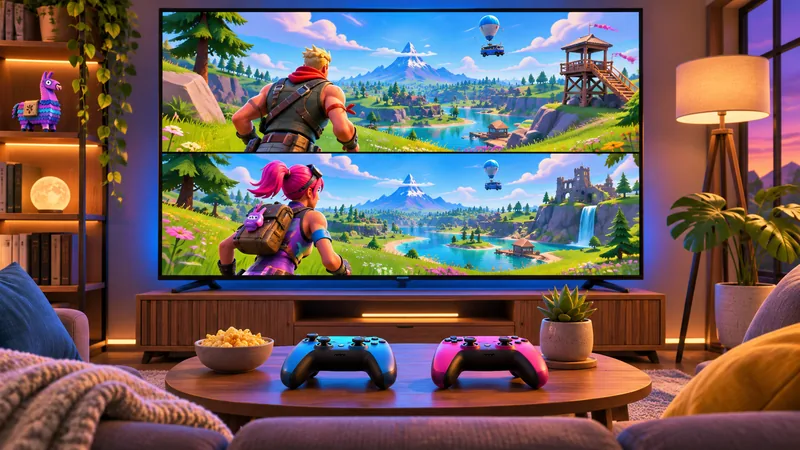
Fortnite split screen lets two people play supported experiences on one PlayStation or Xbox console. You need two controllers and the right accounts, but you should check the selected experience before spending time troubleshooting: not every Fortnite mode supports local multiplayer.
The quickest approach is to get the second player into the lobby, choose a compatible experience, and test one match. The checklist below separates setup problems from mode restrictions and explains what to record if the session still fails.
1. Check Fortnite split screen compatibility first
Epic’s local-multiplayer guide lists support on PlayStation and Xbox, not PC, Nintendo Switch or mobile. It also excludes Solos, Ranked, Save the World, Creative and Limited Time Modes. Check current availability rather than assuming every tile in Discover works.
Decide what you want to play before bringing another controller into the setup. A console connected to a television and a PC connected to a television may look similar from the sofa, but they are different platforms. Changing the display does not add a missing platform feature.
2. Prepare two controllers and the correct accounts
Start Fortnite and reach its lobby. Connect the second controller, select the second player’s console account, and follow the Epic-account linking prompts. Guest and Quick Play console accounts are not supported. Use the intended accounts so each person can recognize their own progress.
Do not let a friend type a password while everyone watches. The account owner should handle sign-in privately. If either person is unsure which account they previously linked, resolve that before creating another account or changing links just to get past a prompt.
Charge both controllers beforehand and distinguish them with different colors or a small removable label. It sounds basic, but knowing which controller belongs to which player makes the next checks much easier.
3. Find an experience that accepts local players
After player two connects, use Discover’s Great for Local Multiplayer row or inspect the Local Players tag in Game Details. Epic currently names Battle Royale, Zero Build and supported LEGO Fortnite experiences among the options. Read the selected game’s details rather than relying on an old screenshot of Discover.
For the first test, pick a straightforward experience both people understand. This is a setup check, not a competitive session. Establish that each controller moves its own character before comparing settings, cosmetics or progression.
4. Know what Fortnite split screen does not share
Epic says the split view applies during matches, not shared lobby menus. Both players need matching language settings, and inventories are not shared. If either person exits or disconnects, the local session ends.
Agree on a few simple habits before your first drop: who chooses the destination, how you call out an enemy, and when both people are ready to leave a match. Sharing one display makes clear communication more useful than constantly looking at the other half of the screen.
Check whether each half is readable from the seat you actually use. If small text is difficult to see, move closer or improve the viewing setup rather than expecting an unsupported camera setting to change the feature’s basic layout.
5. Diagnose a missing second player
If Fortnite split screen never starts, identify the last step that worked. Did the console recognize controller two? Did the correct profile sign in? Did player two appear in the Fortnite lobby? Each answer narrows the problem instead of treating everything as a network failure.
Epic’s PlayStation troubleshooting instructions recommend checking controller connections, separate Epic accounts, permissions, mode support, and game and system updates. A normal restart is also an early step. Work through those basic checks before reinstalling the game.
Keep the test consistent: use the same compatible experience after each change. If you change controllers, accounts and modes at once, you cannot tell which change mattered. Make a brief note such as “player two appears, selected game rejects local players.”
6. Separate restrictions from technical errors
A parental-permission message is not an invitation to bypass family controls. Have the parent or guardian review the relevant account restrictions. Record the exact message; similar-looking errors can lead to different support instructions.
For example, Epic documents a player-two locked-experience error that can appear even outside a split-screen party. That article explicitly distinguishes it from a different parental-lock message. Do not apply an unrelated fix merely because both messages mention an experience being locked.
If a session starts but behaves strangely after an update, check official support for the specific symptom. Avoid promising that a generic cache reset will cure every camera, menu or matchmaking issue.
7. Make the next couch session easier
Save a short Fortnite split screen checklist: console updated, both controllers charged, correct profiles selected, matching languages, compatible game chosen. You only need to revisit a troubleshooting step when something changes.
For a useful help request, include the console model, selected experience, whether player two reaches the lobby, the exact error, and the checks already completed. Never include passwords, recovery codes or account-security screenshots.
If you’re troubleshooting a locked purchased game rather than Fortnite’s local-player setup, see our separate PS5 license-restoration guide. For Epic account protection, our Fortnite 2FA guide covers a different task; neither guide enables an unsupported mode.
Fortnite split screen: quick answers
Can two people play this way on PC?
Not using Fortnite’s supported local-multiplayer feature. A second PC controller does not turn the PC version into the console split-screen version.
Does a session ending mean something is broken?
Not necessarily. One player leaving or disconnecting ends the local session, so first check whether that explains what happened.
Should I reinstall before checking the game mode?
No. Compatibility, accounts and controller recognition are more focused starting points than a full reinstall.
Editorial note: checked against Epic Games support on November 9, 2026. Availability may change with updates. The cover is an AI-generated editorial illustration, not a gameplay screenshot. This guide does not claim a hands-on console test.