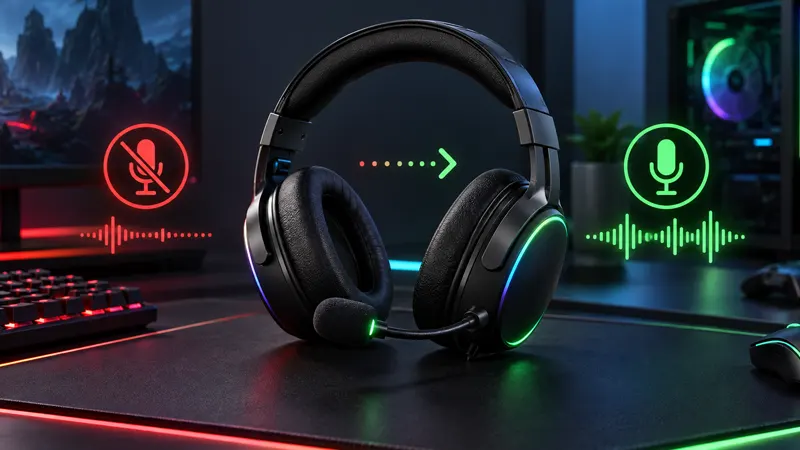
Updated September 24, 2026. Is your gaming headset mic not working even though game audio sounds normal? The cause is often a mute switch, incorrect input device, privacy permission or incompatible connector rather than a broken microphone.
Work through these 12 proven fixes in order. They apply to Windows gaming PCs and also help isolate common Xbox and PlayStation headset problems.
Gaming Headset Mic Not Working: Quick Checks First
Before changing software, inspect the headset. Move the physical mute switch to the active position, rotate any flip-to-mute boom fully downward and raise the microphone level on the cable or earcup. Disconnect the plug, check for dirt or damage, then reconnect it firmly.
If the headset has a detachable boom microphone, remove and reseat that connection too. A plug can deliver stereo sound while its microphone contact remains partially disconnected.
12 Proven Headset Microphone Fixes
- Disable the hardware mute: Check the earcup, boom arm, inline controls and wireless base station for a mute indicator.
- Reconnect every plug: Push the 3.5 mm, USB or detachable microphone connector in completely.
- Use the correct jack: A combined TRRS headset plug needs a compatible combo port or a proper headset splitter for separate PC audio and microphone sockets.
- Select the correct input: In Windows Sound settings, choose the headset microphone rather than a webcam, monitor or controller mic.
- Allow microphone privacy access: Enable access for Windows and for the desktop app or game that needs the mic.
- Raise input volume: Open microphone properties and increase the level gradually while watching the input meter.
- Set the device inside the game: Discord, Steam and many games can override the Windows default input.
- Close apps using exclusive control: Voice software can hold the microphone and prevent another game from accessing it.
- Try another USB port or cable: Connect directly to the PC or console instead of an unpowered hub.
- Update trusted drivers and firmware: Use Windows Update and the headset manufacturer’s official utility, not random driver-download sites.
- Update the controller: Console headsets connected through a controller can fail when controller firmware is outdated.
- Test the headset on another device: A second PC, console controller or phone can separate a headset fault from a system setting.
Choose the Correct Windows Input Device
Open Settings, select System, then Sound. Under Input, choose the microphone that matches the headset. Speak normally and watch the input level. If the meter moves, Windows can hear the microphone and the remaining problem is probably inside the game or chat app.
If several devices have similar names, disconnect the headset and note which entry disappears. Reconnect it, select that entry and set it as the default input. You can disable unused microphones later, but avoid removing devices until the working configuration is clear.
Check Windows Microphone Permissions
Open Settings, choose Privacy & security, then Microphone. Turn on microphone access and allow apps to use it. Desktop games and communication apps may depend on a separate setting for desktop application access.
Privacy settings are a common explanation for a gaming headset mic not working after a Windows update, new account setup or security change. Only grant access to applications you trust, and close any app that does not need the microphone.
Fix 3.5 mm Jack and Splitter Problems
Many gaming headsets use one four-pole TRRS connector for sound and microphone. Desktop PCs often provide separate green audio and pink microphone sockets. In that situation, you need a headset splitter designed to separate one TRRS plug into two PC plugs.
A simple headphone extension or incorrect adapter may pass sound but not microphone input. Inspect connector markings, try the front and rear ports, and confirm that the splitter supports a microphone. Never force a connector that does not fit smoothly.
Fix USB and Wireless Headsets
For a USB headset, connect it directly to another port and wait for Windows to recognize it. Avoid overloaded hubs during testing. If the headset has a wireless dongle, reseat it and follow the manufacturer’s pairing method.
Bluetooth can create separate playback profiles, and some devices switch to a lower-bandwidth hands-free mode when the microphone is active. Select the matching headset input and output pair. If voice still fails, remove the Bluetooth device, restart the system and pair it again.
Check Discord, Steam and In-Game Voice
Open the voice settings inside the affected app and manually select your headset microphone. Disable automatic input sensitivity temporarily, speak into the mic and adjust the threshold until normal speech registers without constant background noise.
Make sure push-to-talk uses the intended key and that the game has not muted the channel, party or individual player. Check parental controls and communication restrictions on console accounts as well.
Safe Driver and Firmware Steps
Restart the computer before reinstalling anything. Run Windows Update, then check the headset manufacturer’s official support page for firmware. Avoid third-party “driver updater” programs, which can install incorrect or unwanted software.
Microsoft maintains a detailed official microphone troubleshooting guide. Xbox users can also consult Xbox headset compatibility support.
Gaming Headset Mic Not Working FAQ
Why can I hear audio but nobody can hear me?
Audio and microphone signals use different contacts and settings. A loose TRRS plug, wrong splitter, muted boom or incorrect input device can break only the microphone path.
Why does the mic work in Windows but not in my game?
The game may use a different input, push-to-talk key, sensitivity threshold or voice channel. Select the headset explicitly in the game’s audio settings.
Can controller batteries affect headset chat?
Low power, outdated firmware or a loose controller jack can cause chat problems. Charge the controller, update it and test another controller if available.
When should I replace the headset?
Replacement becomes likely when the mic fails on multiple compatible devices, the cable is visibly damaged or movement causes repeated dropouts.
Final Checklist
When a gaming headset mic not working problem appears, test hardware first, then the operating-system input, privacy permissions and app settings. Finish by testing another port and another device. For more practical troubleshooting, visit GameWilds Guides.