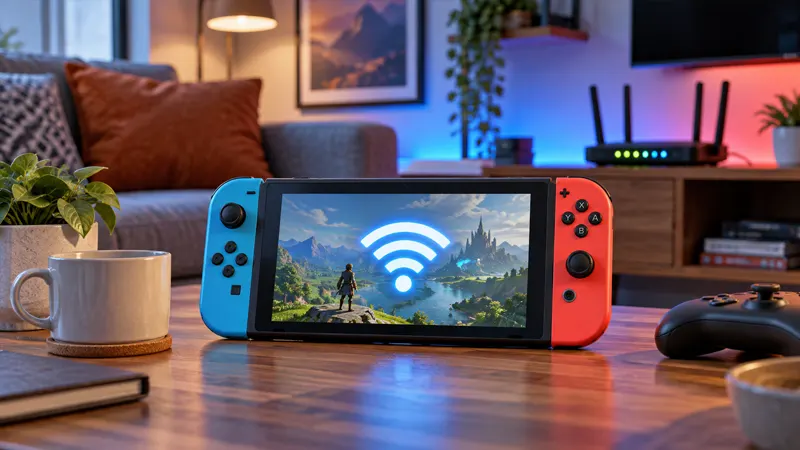
Updated September 22, 2026. Nintendo Switch WiFi problems can block downloads, cloud saves, online matches, and system updates. Most connection failures can be narrowed down safely by checking the console, router, signal quality, and network settings in a logical order.
Nintendo Switch WiFi Problems: First Checks
Look for an on-screen error code and write it down before changing anything. Confirm whether every device has lost internet access or only the Switch is affected. If phones and computers are also offline, focus on the router or internet service instead of the console.
Keep the Switch near the router for initial testing. Thick walls, metal furniture, televisions, appliances, and crowded wireless channels can weaken the signal even when the network name still appears.
10 Easy Fixes for Nintendo Switch WiFi Problems
- Restart the Switch fully. Hold the Power button, open Power Options, and choose Restart. Sleep mode does not refresh every network process.
- Power-cycle the router. Disconnect its power, wait about 30 seconds, reconnect it, and allow several minutes for the connection to return.
- Move closer to the router. Test in the same room. If the connection becomes reliable, distance or obstacles are the likely cause.
- Confirm the correct network password. Forget the saved connection and enter the password again carefully, including capitalization and symbols.
- Run the built-in connection test. Open System Settings, Internet, Test Connection and note where the process fails.
- Update the Switch system. Install official system updates when a temporary connection is available, then restart the console.
- Try the other WiFi band. A 5 GHz network can be faster nearby, while 2.4 GHz often reaches farther through walls. Test both if your router offers separate names.
- Reduce wireless interference. Move the router away from microwaves, cordless-phone bases, Bluetooth congestion, and dense electronics.
- Check DNS and IP settings. Automatic settings are safest for most homes. Remove old manual entries unless your network specifically requires them.
- Test another network. A trusted mobile hotspot or different home connection can reveal whether the problem follows the Switch or remains with the router.
How to Test the Switch Internet Connection
From the HOME Menu, open System Settings, select Internet, and choose Test Connection. The result shows the selected network, internet connection status, and network performance information. An error code can lead to a more specific official support article.
One successful test does not guarantee perfect online play. Repeat it after moving the console or changing bands, and test the actual game because server conditions also affect multiplayer.
2.4 GHz vs 5 GHz for Nintendo Switch
The 2.4 GHz band generally travels farther and passes through walls more effectively, but it is often crowded. The 5 GHz band can deliver faster, cleaner performance at shorter range. Neither band is automatically best in every home.
Use 5 GHz when the Switch is close to the router with few obstacles. Try 2.4 GHz in distant rooms. If both share one network name, band steering is controlled by the router and may not always choose the ideal connection.
Fix Weak Signal and Random Disconnects
Place the router in an open, elevated, central location rather than inside a cabinet or behind a television. Keep antennas positioned according to the manufacturer’s instructions. Mesh nodes should also have a strong connection to the main router.
If the signal is strong but disconnects continue, temporarily pause large downloads on other devices. Restart the game after the network stabilizes because some sessions do not reconnect cleanly.
When the Switch Finds WiFi but Has No Internet
This usually means the console can reach the router but the router cannot reach the wider internet, or a login page is required. Test another device on the same network. Public networks may use a captive portal that must be completed before internet access works.
Home users should inspect the modem and router status lights, then check the internet provider’s service page. Avoid factory-resetting the router until you have its login details and configuration information.
DNS Settings: Automatic or Manual?
Automatic DNS supplied by the router or internet provider works for most players. A manual DNS can sometimes bypass a resolver problem, but it will not repair weak WiFi, congestion, or a failed internet connection.
If you previously entered custom DNS numbers, switch back to Automatic and test again. Change only one setting at a time and record the original values.
Improve Online Gaming Stability
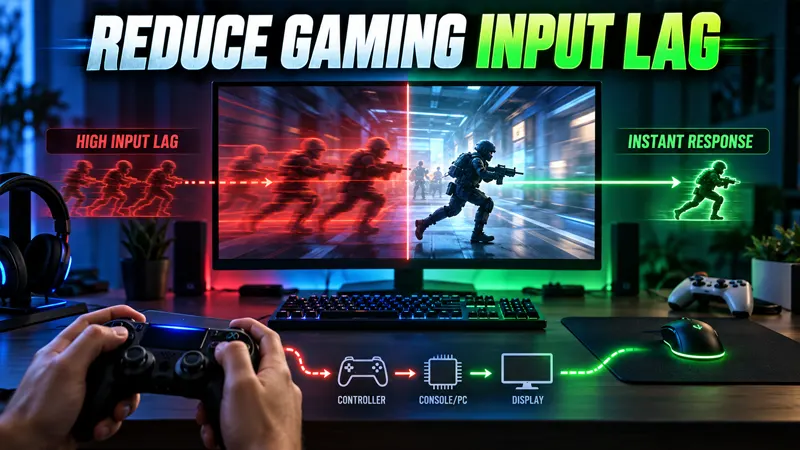
A strong connection is more important than a headline speed number. Reduce distance, avoid interference, and pause bandwidth-heavy traffic during competitive matches. A compatible wired LAN adapter or a dock with an Ethernet port can provide a useful comparison.
Wired Ethernet removes the WiFi portion of the connection, but it cannot fix overloaded game servers or high latency far beyond your home network.
When to Reset Network Settings
Forget only the affected network first and reconnect with the correct password. A full system initialization is not an appropriate first solution for ordinary WiFi trouble and can create unnecessary work.
If every network fails after updates, restarts, and controlled tests, contact Nintendo Support with the console model, system version, router model, and exact error code.
For more practical console help, browse GameWilds Guides. Nintendo offers an official wireless connection troubleshooting guide and an error-code lookup.
Frequently Asked Questions
Why does my Switch connect to WiFi but not the internet?
The router may be offline, DNS resolution may have failed, or the network may require a web login. Test another device on the same connection.
Is 5 GHz always better for Nintendo Switch?
No. It can be faster at close range, while 2.4 GHz may be more stable through walls or at longer distances.
Will changing DNS reduce lag?
DNS mainly helps devices find services. It rarely changes gameplay latency after a session is connected.
Should I factory-reset the Switch for WiFi issues?
No. Restart, forget the network, test another connection, and contact support before considering disruptive reset options.
To solve Nintendo Switch WiFi problems, begin with a full restart, close-range test, router power cycle, and fresh connection. These simple checks identify most faults without risky changes or unnecessary resets.