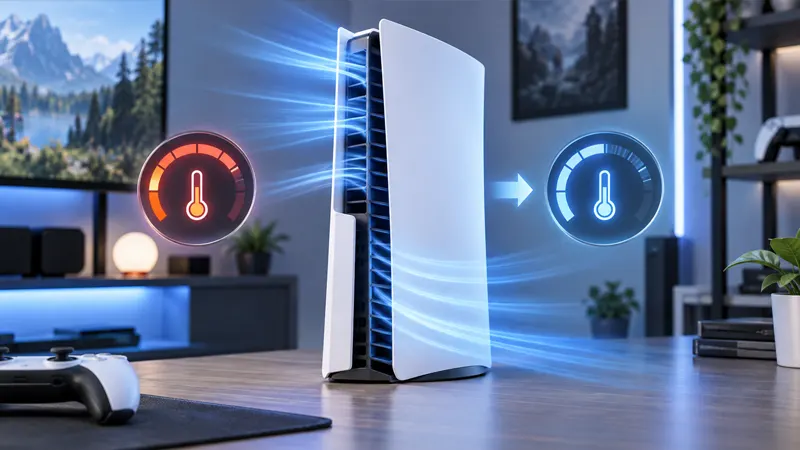
Updated September 24, 2026. A safe PS5 overheating fix begins with airflow, dust control and recognizing the console’s warning signs. If your PlayStation 5 displays a temperature alert, becomes unusually loud or shuts down during demanding games, stop playing and let it cool before troubleshooting.
This guide explains 10 low-risk solutions you can try without damaging the console, plus the signs that mean professional service is the smarter choice.
PS5 Overheating Fix: Start With Safety
Turn the PS5 off completely, unplug the power cable and allow the console to return to room temperature. Do not place it in a refrigerator, near an air conditioner vent or against ice. Rapid temperature changes can create condensation, which is far more dangerous than ordinary heat.
If you smell burning, hear crackling, see liquid near the console or notice a damaged power cable, stop immediately. Do not reconnect the system; contact PlayStation Support or a qualified repair provider.
10 Safe Cooling Solutions
- Give the console open space: Move the PS5 away from walls, curtains and furniture that block intake or exhaust vents.
- Remove it from a closed cabinet: Even a clean console can recycle hot air when trapped in an entertainment unit.
- Check the stand and orientation: Install the supplied or compatible stand correctly for your PS5 model and keep the system stable.
- Clean exterior vents: With the console unplugged, use a soft, dry cloth and gentle cleaning around accessible vent openings.
- Clear surrounding dust: Clean the shelf, nearby cables and floor so the fan does not immediately pull dust back inside.
- Lower the room temperature: Reduce direct sunlight and improve room ventilation during long sessions.
- Update system software: Install official PS5 updates, which can include stability and power-management improvements.
- Check the M.2 SSD installation: If overheating began after adding storage, confirm the drive has a suitable heatsink and was installed according to Sony’s instructions.
- Test without extra accessories: Disconnect nonessential USB devices and external storage temporarily to isolate a failing accessory.
- Use official support when shutdowns continue: Repeated thermal warnings after cleaning and repositioning can indicate a fan, power or internal cooling fault.
How Much Space Does a PS5 Need?
There is no benefit in squeezing the console into a perfectly fitted shelf. Leave clear space around the intake and exhaust areas, and make sure hot air has a path out of the cabinet. The exact layout matters more than a single measurement: an open shelf with steady room airflow is better than a larger sealed box.
Avoid placing the PS5 on thick carpet, bedding or another soft surface that can obstruct vents and collect dust. Use a solid, level base. Keep paper, game cases and cloth decorations away from the back of the console.
How to Clean Without Causing Damage
Power off and unplug every cable first. Wipe the exterior with a soft, dry, lint-free cloth. For accessible dust, work gently and follow the cleaning steps in the official manual for your exact model. Do not spray cleaner or liquid into openings.
Avoid forcing high-pressure compressed air deep into the system, spinning the fan aggressively or inserting metal tools through vents. Do not dismantle internal assemblies unless Sony’s instructions explicitly authorize the step and you understand the warranty implications. A safe PS5 overheating fix should reduce risk, not create a new electrical or mechanical problem.
Check System Software and Games
Open Settings, choose System, then confirm the console software is current. Update the affected game as well. If the problem appears in only one title, test another demanding game after the console has cooled. A single-game crash can be software-related, while temperature warnings across multiple games point more strongly toward ventilation or hardware.
Safe Mode options may help with database or software problems, but they cannot repair a failed fan or dried thermal interface. Back up important saves before using any reset option, and read each Safe Mode description carefully.
When an Added M.2 SSD Is Involved
An M.2 SSD used in a PS5 must meet Sony’s specifications and use effective heat dissipation. If thermal trouble started soon after installation, shut down the console and review the official storage guide. Verify the heatsink fits correctly and that the expansion cover and screws are installed as directed.
Do not continue testing a drive that is excessively hot, loose or producing errors. Remove it only after the system has been powered off, unplugged and allowed to cool.
When to Contact PlayStation Support
Seek service if the console repeatedly shows an overheating message in an open, clean location; if the fan does not appear to operate; or if shutdowns happen soon after startup. The same applies to unusual odors, visible damage, power problems or liquid exposure.
Use the official PlayStation 5 support hub and consult the official M.2 SSD installation guide when extra storage is involved.
PS5 Overheating Fix FAQ
Is a warm PS5 normal?
Warm exhaust air is normal because the cooling system moves heat away from internal components. On-screen warnings, repeated shutdowns, burning smells or extreme surface heat are not normal.
Do third-party cooling fans solve overheating?
Not necessarily. Some accessories can disrupt designed airflow or add noise. Correct placement, cleaning and official service should come before an unverified attachment.
Can I keep playing after a temperature warning?
No. Save if possible, turn the console off and let it cool. Continuing can cause more shutdowns and may risk hardware damage.
Should I open the power supply or fan assembly?
No. Deep disassembly carries electrical, mechanical and warranty risks. Use official user-serviceable steps or professional repair.
Final Advice
The best PS5 overheating fix is careful and methodical: cool the console, restore open airflow, remove accessible dust, check updates and isolate recent hardware changes. If warnings remain, stop experimenting and arrange support. For more practical console help, visit GameWilds Guides.