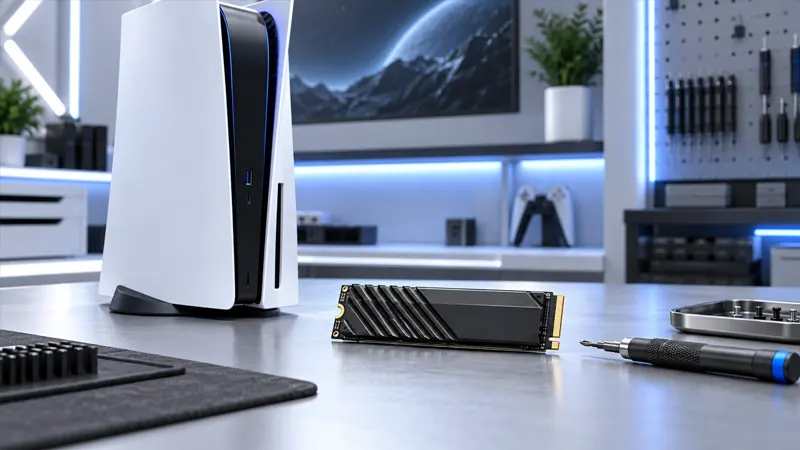
Updated September 22, 2026. A PS5 SSD upgrade is one of the best ways to add storage without constantly deleting games. The process is straightforward, but choosing a compatible drive, using a heatsink, and installing it correctly are essential.
PS5 SSD Upgrade Requirements
The PlayStation 5 expansion slot accepts a compatible PCIe Gen4 x4 M.2 NVMe SSD. Sony recommends a sequential read speed of at least 5,500 MB/s and requires an effective heat-dissipation mechanism such as a heatsink or heat-transfer sheet. Supported capacities currently range from 250 GB to 8 TB.
Do not buy a drive based only on its capacity. Confirm its interface, physical size, total dimensions with the heatsink, and manufacturer compatibility information. SATA M.2 drives are not supported.
9 Safe PS5 SSD Upgrade Steps
- Update the PS5 system software. Install the latest official update before opening the console so current storage support and compatibility fixes are available.
- Back up anything important. Installing a new drive should not erase console storage, but a current cloud or USB backup protects valuable saves and captures.
- Shut down completely. Do not use Rest Mode. Turn the console off, disconnect every cable, and allow it to cool.
- Discharge static electricity. Work on a clean, well-lit table and touch a grounded metal object before handling the SSD.
- Remove the correct cover. Follow the official instructions for your specific PS5 model because the cover position and orientation differ between model groups.
- Open the expansion bay. Use a number 1 Phillips screwdriver, keep the small screw safe, and move the spacer to the SSD’s length.
- Insert the M.2 SSD carefully. Align the notch, slide the drive firmly into the connector at an upward angle, then lower it onto the spacer without forcing it.
- Secure and reassemble. Tighten the SSD screw gently, replace the expansion-slot cover, reinstall the console cover, and reconnect the cables.
- Format and test the drive. Follow the on-screen format prompt. Never power off during formatting. Afterward, move or install a game and launch it to confirm normal operation.
How to Choose a Compatible M.2 SSD
A suitable drive uses the M key connector and PCIe Gen4 x4 NVMe interface. Sony lists supported M.2 types from 2230 through 22110, although 2280 is common. The complete assembly must fit inside the expansion bay, including the heatsink.
A larger advertised speed does not guarantee better real-world results if the drive overheats or does not fit. Prefer a reputable model with clear specifications, warranty coverage, and a heatsink designed for the PS5 space limits.
Why the Heatsink Matters
Fast NVMe drives create heat during sustained transfers and gameplay. A heatsink spreads that heat over a larger surface so the controller and memory can stay within a safer operating range. Sony specifically requires a heat-dissipation mechanism.
If the SSD already includes an integrated heatsink, do not stack another one on top. Extra material can prevent the slot cover from closing and may reduce rather than improve cooling.
Installing the SSD Without Damage
Handle the drive by its edges and avoid touching the connector or components. The SSD should slide into the socket with steady, gentle pressure. If it does not seat correctly, stop, check the notch and angle, and try again instead of forcing it.
The circuit board should rest level on the spacer before the retaining screw is tightened. A misplaced spacer can bend the drive. The screw needs to hold the SSD securely, but overtightening can strip it.
Formatting and Moving Games
When the PS5 detects a new SSD, it asks to format the entire drive. Formatting erases any existing data on that SSD, so never install a drive containing files you need. Do not interrupt the console during this process.
After formatting, open Settings, Storage, and Installation Location to choose where new PS5 and PS4 games are installed. You can move supported games between console storage and the M.2 SSD without downloading them again.
Common PS5 SSD Upgrade Problems
The PS5 does not detect the SSD
Power down, disconnect the console, and reseat the drive. Confirm it is PCIe Gen4 x4 NVMe rather than SATA, and verify the spacer and screw position.
The expansion cover will not close
The heatsink assembly may be too tall or wide. Do not operate the console without the cover. Compare the drive’s full dimensions with Sony’s requirements.
The console reports a low read speed
Check for current firmware from the SSD manufacturer and retest after a full shutdown. Performance can differ from the package rating, but frequent errors or crashes require support.
SSD vs USB Extended Storage
A compatible M.2 SSD can store and directly play PS5 and PS4 games. USB extended storage is useful for archiving PS5 games, but PS5 titles must be copied back to internal or M.2 storage before play. PS4 games can generally run from USB extended storage.
For more console help, browse GameWilds Guides. Always compare your model with PlayStation’s official M.2 SSD installation guide and PS5 storage guide.
Frequently Asked Questions
Will a PS5 SSD upgrade void the warranty?
Using the supported expansion slot as instructed is a designed feature. Damage caused by incorrect installation may not be covered, so follow official steps carefully.
Can I use an M.2 SSD without a heatsink?
No. Sony requires an effective heat-dissipation mechanism for an SSD installed in the expansion slot.
Can the PS5 play games directly from the new SSD?
Yes. Compatible M.2 storage can download, copy, and launch PS5 and PS4 games.
Do I need to format an SSD moved from another PS5?
Sony says formatting is not required when moving an M.2 SSD between PS5 consoles, but the same account may be needed to access game data correctly.
A careful PS5 SSD upgrade gives you fast, convenient storage for a growing library. Compatibility checks, static protection, correct spacing, and a proper heatsink matter more than rushing the installation.