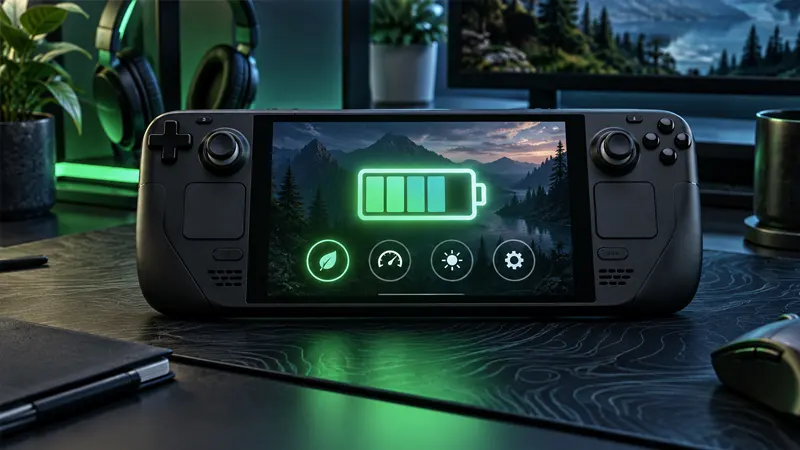
Updated September 22, 2026. Improving Steam Deck battery life does not require extreme tweaks or risky software. A few smart display, performance, and connectivity changes can add meaningful playtime while keeping games smooth and enjoyable.
Steam Deck Battery Life: Start With a Baseline
Before changing settings, charge the handheld fully, restart it, and test one familiar game for about 20 minutes. Note the estimated remaining time, frame rate, brightness, and performance profile. This gives you a fair baseline instead of relying on a battery estimate that changes whenever the workload changes.
Valve explains that battery life varies substantially with the game and workload. Demanding 3D games consume far more power than streaming, browsing, or lightweight 2D titles, so compare settings inside the same game and area.
10 Proven Ways to Extend Steam Deck Battery Life
- Lower screen brightness. The display is a constant power draw. Start around 40 to 60 percent indoors and increase it only when visibility requires it.
- Set a sensible frame-rate limit. A stable 30 or 40 FPS target often saves power in demanding games while still feeling smooth on the handheld screen.
- Reduce the refresh rate. Match the display refresh rate to the chosen frame cap. Avoid asking the screen and processor to refresh faster than the game needs.
- Use a lower thermal power limit carefully. Reducing the available power can improve efficiency in games that do not need the full processor budget. Lower it gradually and test for stutter.
- Choose efficient graphics settings. Shadows, volumetric effects, reflections, and crowd density are often expensive. Lower these before sacrificing texture quality.
- Use upscaling when appropriate. FSR or an in-game resolution scaler can reduce GPU load. Use a quality-oriented mode first so text and fine details remain clear.
- Disable unused wireless features. Turn off Bluetooth when no accessories are connected. Use airplane mode for offline games when Wi-Fi is unnecessary.
- Pause background downloads. Downloads, shader processing, and updates can use the network, storage, and processor while you play.
- Keep SteamOS and games updated. Official updates may improve compatibility and efficiency. Restart after major updates before judging battery behavior.
- Protect the battery from heat. Keep vents clear, avoid soft surfaces that block airflow, and do not leave the device in a hot vehicle or direct sunlight.
Best Performance Settings for Longer Playtime
The most effective approach is a balanced profile for each game. Begin with a 40 FPS cap for action games or 30 FPS for slower titles, then lower demanding visual effects. If frame times remain stable, reduce the power limit in small steps. Stop when performance becomes inconsistent and move back one level.
A frame cap is especially useful when a game renders far more frames than the screen needs. Uncapped menus can also waste energy, so enable an in-game limiter when available. Consistent pacing usually feels better than a higher number that fluctuates constantly.
Display Changes That Save Power
Brightness is the easiest adjustment because it affects every game. Automatic brightness can help in changing environments, but a comfortable manual level is more predictable. HDR can increase power use in bright scenes, so test standard dynamic range when maximum endurance matters.
Do not make the screen uncomfortably dark merely to chase an estimate. Eye comfort and clear visibility matter more than a few extra minutes. The best Steam Deck battery life setting is one you can use comfortably for an entire session.
Wi-Fi, Bluetooth, and Offline Play
Wireless radios are not normally the largest drain, but disabling unused connections can still help during long trips. Download games and required updates before leaving home. Launch each game once while connected because some titles need an initial sign-in or shader download.
Offline Mode is different from airplane mode. Offline Mode changes Steam account behavior, while airplane mode disables radios. Prepare both before traveling so license checks or cloud-save conflicts do not interrupt play.
Charging Habits and Battery Health
Modern charging controls are designed for normal daily use, so you do not need to obsess over perfect percentages. The bigger enemies are sustained heat, damaged cables, and poor-quality power adapters. Use a compatible USB-C Power Delivery charger and inspect the cable if charging becomes intermittent.
If the percentage appears inaccurate, complete a normal charge and discharge cycle before assuming the battery is failing. Sudden shutdowns, swelling, unusual heat, or a rapidly declining capacity deserve official support rather than improvised repair.
Do Power Banks Improve Steam Deck Battery Life?
A power bank extends total portable playtime but does not make the internal battery more efficient. Choose a reputable USB-C Power Delivery model with adequate output and a suitable cable. Remember that advertised capacity is measured before conversion losses, so usable energy will be lower.
Place the power bank where it can stay cool and never cover the handheld vents. Heavy accessories mounted directly to the device may also make long sessions uncomfortable.
How to Measure Your Results
Use the performance overlay to watch power draw, frame rate, and battery estimate. Repeat the same scene for several minutes after every important change. Estimates can jump at first, so wait until the workload stabilizes before comparing results.
For more optimization help, explore the GameWilds Guides section. You can also review Valve’s official Steam Deck hardware information and Steam Deck support.
Frequently Asked Questions
Does 30 FPS improve Steam Deck battery life?
Often, yes. A lower stable frame-rate target can reduce processor and graphics demand, especially in demanding games.
Is it safe to lower the thermal power limit?
Using the built-in performance controls is generally safe. Lower values reduce available performance, so test each game and reverse the change if stutter appears.
Should I play while charging?
Normal play while using a compatible charger is supported. Keep vents clear and stop if the device, charger, or cable behaves abnormally.
Why does the battery estimate keep changing?
The estimate reacts to current power use. Menus, cutscenes, busy areas, downloads, and frame-rate changes can all alter it quickly.
For better Steam Deck battery life, prioritize a stable frame cap, comfortable brightness, efficient graphics settings, and sensible heat management. Small improvements across the whole system usually work better than one aggressive tweak.