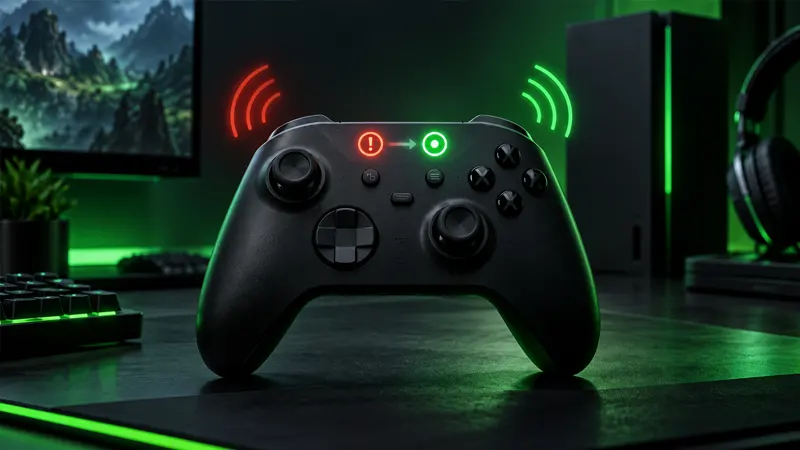
Updated September 22, 2026. An Xbox controller not connecting can interrupt a game before it even starts. The good news is that most pairing failures come from power, distance, outdated firmware, USB cables, or a confused wireless connection—not a dead controller.
Xbox Controller Not Connecting? Check the Basics
Start by identifying the connection type. An Xbox controller can connect to a console through Xbox Wireless, to supported devices with Bluetooth, or directly through USB. Troubleshoot only one method at a time so an old pairing does not interfere with your test.
Move within a few feet of the console or PC, remove obvious obstacles, and temporarily disconnect extra wireless accessories. Then work through the following fixes in order.
11 Proven Fixes for an Xbox Controller Not Connecting
- Replace or recharge the batteries. Weak power can light the controller briefly but prevent a stable connection. Try fresh batteries or a fully charged compatible pack.
- Power-cycle the controller. Hold the Xbox button until the controller turns off, wait several seconds, and press it again.
- Restart the console or PC. A full restart clears stuck wireless and USB services more reliably than sleep mode.
- Pair the controller again. Press the pair button on the console or adapter, then hold the controller’s pair button until the Xbox button flashes rapidly.
- Move closer and reduce interference. Routers, crowded USB hubs, metal cabinets, and other wireless devices can weaken or disrupt the signal.
- Test a data-capable USB cable. Some cables provide charging only. A known data cable can establish the connection and help isolate a wireless problem.
- Update controller firmware. Use the Xbox Accessories app on console or Windows and install any available update without disconnecting the controller.
- Forget the Bluetooth pairing. On a phone, tablet, or PC, remove the controller from saved Bluetooth devices and pair it again from scratch.
- Disconnect other remembered devices. The controller may be trying to reconnect to a previous console, PC, or mobile device. Turn Bluetooth off on nearby devices during testing.
- Change the USB port or adapter position. Avoid unpowered hubs and try a direct port. Move a wireless adapter away from dense cables with a short extension if needed.
- Test the controller on another device. This final comparison reveals whether the fault follows the controller or stays with the original console, PC, cable, or adapter.
How to Pair an Xbox Controller With a Console
Turn on the console and controller. Press the console’s pair button, then press and hold the controller’s pair button for a few seconds. The Xbox button flashes while searching and stays lit when the connection succeeds.
If pairing repeatedly fails, connect the controller by USB, sign in, and check for firmware updates. Remove unnecessary accessories during this test, including headsets and chatpads.
Fix Xbox Controller Bluetooth Problems
Bluetooth is convenient for Windows, phones, and tablets, but not every older controller model supports it. Confirm your hardware supports Bluetooth, then remove the existing saved pairing in the device’s settings.
Put the controller into pairing mode and select it from the visible device list. If it never appears, restart Bluetooth, move closer, and update the operating system’s Bluetooth driver through the device manufacturer.
Do not pair the controller to multiple nearby devices at once. A remembered phone can capture the connection before the PC finishes pairing.
Xbox Controller Connects Then Disconnects
Frequent disconnections often point to low battery power, radio interference, excessive distance, firmware problems, or a damaged cable. Test close to the console with fresh batteries and no headset. If that works, add accessories back one at a time.
On Windows, disable aggressive USB power saving only as a controlled test, then restore it if nothing improves. Use official drivers and avoid random driver-download websites.
Why a USB Cable May Not Work
A cable can charge the controller without carrying data. Try a cable that has successfully transferred files or connected another controller. Inspect both connectors for looseness, lint, bent metal, or physical damage.
Connect directly to the console or PC instead of a keyboard, monitor, or passive hub. If one port fails and another works, the problem is probably the port or hub rather than the controller.
Update the Controller Safely
Open the Xbox Accessories app with the controller connected by USB or stable wireless. Follow the update prompt and keep the controller powered until completion. Interrupting firmware installation can create more connection problems.
If no update appears, confirm that the app and system software are current. Restart everything after the update so the new firmware loads cleanly.
When the Problem Is the Console or PC
If several controllers fail on one console but work elsewhere, power-cycle the console and check official service information. On PC, test Bluetooth with another accessory and Xbox Wireless with another controller if available.
Recent driver, USB, or system changes can also matter. Revert only a change you can identify, and avoid broad registry edits or unofficial repair tools.
When to Request a Repair
Contact support when the controller will not power on with known-good batteries, its USB port is loose, the pair button is physically stuck, or it disconnects on every tested device. Record the controller serial number and the troubleshooting already completed.
For more practical fixes, visit GameWilds Guides. Microsoft provides official controller connection help and the firmware update guide.
Frequently Asked Questions
Why is my Xbox controller blinking but not connecting?
A blinking Xbox button normally means the controller is searching. Pair it again, move closer, and disconnect remembered devices that may capture the connection.
Can a charging cable connect the controller?
Only if it also carries data. Charge-only cables cannot establish a wired controller connection.
Why does the controller work with USB but not wirelessly?
The controller itself has power, but pairing, interference, Bluetooth, an adapter, or wireless firmware may be the problem.
Does updating firmware erase controller settings?
Normally no, although customized profiles are managed through the Xbox Accessories app and should be checked afterward.
When an Xbox controller is not connecting, begin with fresh power, a full restart, close-range pairing, and a known data cable. Those tests solve common faults quickly and reveal whether software, wireless interference, or hardware needs deeper attention.