A winning round is easy to remember and surprisingly easy to lose. Steam Game Recording gives you a way to capture gameplay, trim the useful part and export a video without keeping a separate recorder open. The important distinction is between a temporary background recording and a clip you have deliberately saved.
This guide explains a practical first-session workflow: choose a recording mode, check the result, preserve the moment and make a shareable file. It also includes a simple test routine so you can judge recording quality on your own PC instead of copying settings that may not suit it.
Steam Game Recording: the quick setup
Open the Steam desktop client and go to Steam → Settings → Game Recording. Choose background recording for unexpected moments or on-demand recording when you want to control when capture starts. Review the storage location, audio options and shortcuts before playing.
Valve documents the setup and troubleshooting options in its official Steam Game Recording support guide. Menu wording can change with client updates, so use the labels in your installed client if they differ slightly from this walkthrough.
1. Choose a mode that matches the session
Background recording is useful when you cannot predict the interesting moment: a close finish, an unusual bug or a clever team play. On-demand recording is easier to manage when you already know what you want to capture, such as a short tutorial or a repeatable practice exercise. You can also leave recording off when you do not need it.
Before choosing, finish this sentence: “At the end of this session, I want a video of…” If the answer is a specific demonstration, start with on-demand. If the answer is anything memorable that happens during play, background mode is the more natural fit.
2. Set a storage budget before a long match
Background footage is temporary. Once its allotted storage is used, newer gameplay can overwrite older footage. A recording visible now should not be treated as a permanent archive. Steam lets you adjust the recording destination and retention-related settings from the recording panel.
Leave spare room for the game itself, updates and exported videos. For a first test, aim for a short session rather than an evening of recording. Write down the drive’s free space before and after the test. That small comparison helps you decide whether your chosen quality is practical.
3. Run a one-minute picture and sound check
Use a quiet practice area or an offline section if the game offers one. Record normal movement, a short burst of action and a moment with menu text. Then review the result before entering a ranked match. This is a suggested testing routine, not a claim that every game has been tested on every graphics card.
- Picture: can you read the important interface details?
- Motion: does a quick camera turn look smooth enough for your purpose?
- Sound: can you hear the game at a comfortable level?
- Microphone: if you intend to include your voice, confirm that it is actually present.
Check privacy at the same time. Avoid recording account details, private chats or other people’s voices without considering their expectations. Review a clip before posting it publicly.
4. Find the recording and save the moment
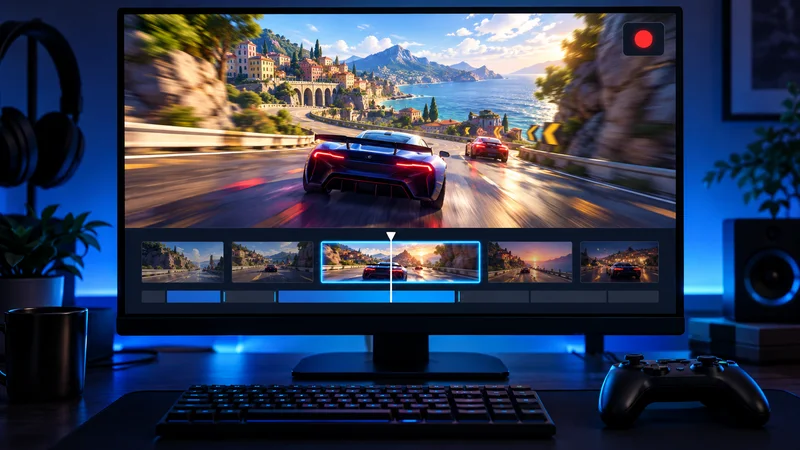
On desktop, use View → Recordings & Screenshots. The in-game overlay also provides access to recordings. Valve identifies the Media section as the corresponding place on Steam Deck. Find the relevant session, select the interesting section and create a saved clip.
A useful clip usually needs a little context. Start just before the action becomes understandable, rather than on the exact frame of a goal or elimination. End after the outcome is clear. For a bug report, keep the action that triggered the problem as well as the visible failure.
5. Export a file you can actually share
Steam’s recording data includes video and timeline information in its own recording format. To obtain a conventional video file, create a clip and use its export option for MP4. Do not assume that copying the recording folder produces a ready-to-upload video.
After export, open the MP4 in a video player. Check the beginning, middle and end, then give it a descriptive filename such as racing-final-lap-pass.mp4. Keep the saved clip until you have confirmed that the exported file plays correctly and is stored where you expect.
6. Troubleshoot Steam Game Recording one change at a time
A low-disk-space warning means storage needs attention. Review large files you no longer need, choose another recording destination with available capacity, or reduce the amount or quality of background footage retained. Do not delete unfamiliar game-save folders to make room.
Valve notes that “No Recording Available” can appear around game startup, shutdown or resolution changes, and when older background footage has already been overwritten. First determine whether the missing section was ever captured and whether it could have aged out.
If the game itself is malfunctioning, our guide to verifying Steam game files covers a separate repair workflow. If a warning concerns saves rather than video, read the Steam Cloud conflict guide before choosing which save to keep.
7. Keep a repeatable recording checklist
Before a session, check mode, destination and sound. After a memorable moment, save the clip before relying on the temporary history. Before sharing, play the exported file and inspect it for private information. These three checkpoints are more useful than repeatedly changing settings without reviewing a result.
If performance feels worse while recording, compare the same practice scene with recording off and on. Change one setting, repeat the comparison, and keep notes. Avoid judging from two unrelated online matches, where server conditions and scene complexity may differ.
Frequently asked questions
Does background recording keep everything forever?
No. Treat its history as a rolling buffer. Save the moments you want to preserve as clips, then verify your exports and backups.
Should I record in the background or on demand?
Choose background mode for unpredictable highlights and on-demand mode for planned demonstrations. The best choice is the one that captures what you need without creating an unmanageable library.
What should I check before uploading a clip?
Confirm that the video plays, the audio is appropriate, the context is understandable and no private information is visible. A short, clearly named clip is easier to review and reuse than an unexplained full session.
Bottom line: start Steam Game Recording with a short test, save the moments that matter and verify the exported MP4. Capture is only the first step; keeping a usable, understandable clip is the real goal.