Steam Cloud conflict messages deserve a pause before you launch the game. They appear when local and cloud files disagree, and choosing the wrong version can replace progress you wanted to keep. The safest decision comes from reconstructing your last session, protecting the available copies and checking the result before switching devices again.
This guide provides a careful decision process for ordinary save conflicts. File locations and cloud support vary by game, so use the developer’s save documentation when locating or restoring specific files. A universal folder-deletion trick is a poor substitute for identifying the right save.
What a Steam Cloud conflict means
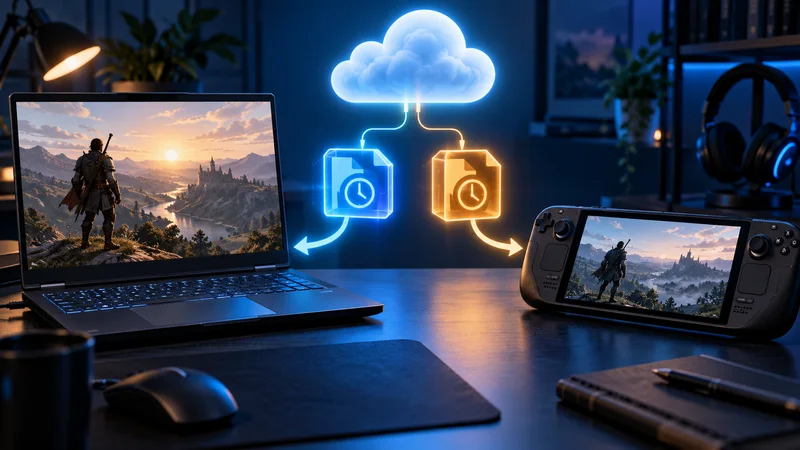
Valve explains that a conflict occurs when associated local files differ from the cloud copy and Steam cannot choose between them. A recent modification time is a useful clue, but it should match what you remember doing. Offline sessions and device switching can leave different versions on different machines.
1. Stop and record the message
Take a screenshot of the conflict window, including dates and any file details. Note which device you are using and which device hosted your last meaningful session. Do this before clicking either choice, so you retain the information needed to explain the problem later.
Keep the note simple: yesterday’s desktop session reached chapter four; today’s handheld session only opened the title screen. That description can be more informative than a timestamp produced by a brief launch.
2. Identify the progress you want
Think about the most recent objective completed, item collected or manual save created. Ask whether the game was closed normally and whether the original device had an internet connection afterward. Avoid assuming the machine in front of you has the best copy simply because it is the one showing the warning.
If you cannot identify the intended progress, leave the decision pending while you inspect the original device and the game’s save guidance.
3. Preserve local files before choosing
Close the game and follow the developer’s instructions to locate its save folder. Copy the relevant files to a separate, dated backup location without moving or deleting the originals. If both devices have potentially useful progress, preserve both copies separately.
Name the folders by device and session, such as Desktop-before-conflict and Handheld-before-conflict. Work with duplicates when testing a restoration, and keep the untouched copies available until the correct progress is confirmed.
4. Check whether this game syncs saves
Steam Cloud support does not mean every game file is synchronized. Valve lets developers decide which files participate. Confirm the game’s support details before expecting a missing character or campaign to appear automatically on another operating system.
Also check that you are signed into the intended Steam account. A different account, launcher or game profile can look like lost progress even when the original files remain intact.
5. Resolve the underlying sync problem
If Steam reports a failed sync, address it before continuing the campaign. Check the connection, restart the client normally and allow a stable online period. Avoid repeatedly launching the game on both devices while diagnosing the issue; each session adds another possible version to the timeline.
Do not disable security tools or remove save directories as a first response. If the same error persists, collect the exact message and contact the game developer or Steam Support with your session notes.
6. Select the version that matches your evidence
Compare the conflict details with the session you recorded. The newest timestamp often corresponds to the latest progress, but it is not proof by itself. Choose only when the device, time and remembered in-game milestone tell a consistent story.
If the stakes are high and the evidence remains unclear, preserve the files and ask the developer for a game-specific recovery procedure. Guessing is unnecessary when you still have copies to investigate.
7. Verify your Steam Cloud conflict resolution
Load the relevant save and check the actual milestone, inventory and playthrough. A successful launch only confirms that the game runs. After verifying the desired progress, close it normally and allow synchronization to finish before starting on another device.
For handheld sessions, our Steam Deck battery guide can help you plan a longer session without interrupting play at an awkward moment.
8. Build a cleaner device-switching habit
Use one active session at a time, wait for synchronization after closing and keep an occasional independent backup of valuable progress. Before traveling offline, check that the intended save is available on the device you will take. On your return, reconnect that device and finish syncing before opening the game elsewhere.
Our gaming guides collect more practical troubleshooting. For the authoritative explanation of Steam Cloud conflict behavior and its limitations, read Valve’s Steam Cloud support page.
A Steam Cloud conflict is easier to resolve when you have a clear session history and preserved copies. Slow down at the choice, verify the selected save and keep the recovery copies until you are confident your progress is intact.