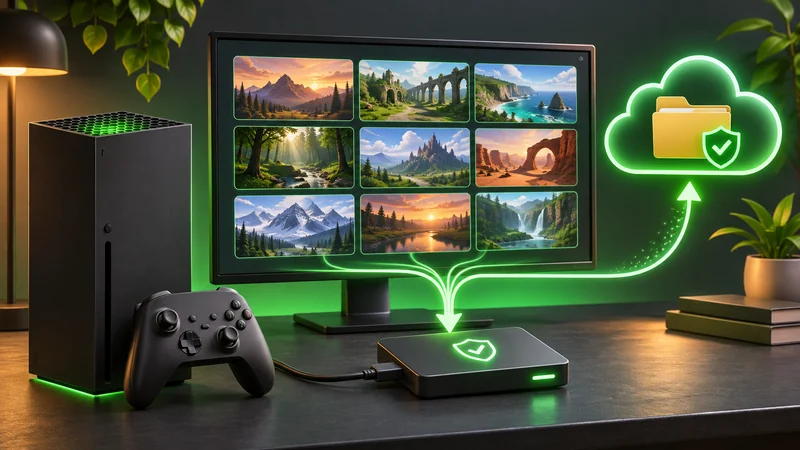
An Xbox captures backup is worth doing before a favorite clip becomes difficult to recover. Xbox Support warns that game clips and screenshots uploaded to the Xbox network may be deleted after 90 days. A public clip link is therefore not a permanent personal archive.
The aim is simple: identify the original, copy it to a destination you control, then open the copy and verify it. This guide focuses on captured media, not game saves. A recording of a completed mission does not preserve the campaign progress behind it.
1. Identify what needs an Xbox captures backup
First, distinguish captures stored on your console, files uploaded to the Xbox network and any copies you already saved elsewhere. Seeing the same thumbnail in more than one place is not proof that all those copies are independent and permanent.
Xbox’s current backup instructions explain the network-retention warning and supported backup routes. Its 2023 policy announcement gives the background; the warning is not a newly announced November 2026 change.
Start with irreplaceable moments: a personal record, a clip with friends or evidence needed for a support report. List the game, approximate date and the reason you want to keep it. That makes selection less error-prone than scrolling a large gallery without a plan.
2. Select a small first batch in Captures
On console, open My games & apps → See all → Apps → Captures, filter the list, then choose Manage. Select the items you want to preserve. The backup choices include Upload to OneDrive and Copy to external storage.
Make the first attempt small enough that you can recognize every result. For example, use one screenshot and one important video rather than selecting years of captures immediately. Once that works, repeat the process with the rest.
This approach gives you a clear checkpoint. If an upload fails, you know which files remain unverified instead of guessing whether an enormous mixed batch partly completed.
3. Verify the OneDrive destination
Xbox Support says uploading to OneDrive does not remove the console or network originals. Check the destination while signed into the intended Microsoft account: screenshots normally appear under Pictures → Xbox Screenshots, and clips under Videos → Xbox Game DVR.
For your Xbox captures backup, do more than count thumbnails. Open a picture and play a video from the destination. Check that the game and moment are correct and that the video reaches the part you care about.
Keep enough free storage for the files you intend to upload. If your account is full, pause and review it; do not delete unrelated personal documents to force a gaming upload through. Decide deliberately what you want to keep and whether another backup route fits better.
4. Use the right external storage without erasing anything
The documented external-copy option requires an NTFS-formatted USB drive, not the differently formatted drive used for installed Xbox games. Treat that distinction seriously before connecting a device that contains anything valuable.
Do not format an existing drive just to follow this article. Formatting can erase files. First identify the device, check its contents on an appropriate computer and preserve anything you need. If you cannot establish that a device is safe to use, choose another supported destination.
After copying, inspect the destination files. Write down the drive name and the folder you used so you can find the clips months later. An unlabeled drive in a drawer is easy to confuse with an empty one during a future cleanup.
5. Treat automatic uploads as a setting, not a guarantee
Xbox documents future OneDrive uploads under Settings → Preferences → Capture & share → Automatic uploads → To OneDrive. Enabling that option does not establish that all older captures have already been copied.
After setting up an Xbox captures backup routine, check the next capture at its destination. Continue occasional spot checks, especially after storage fills, an account changes or a connection problem interrupts transfers.
A useful habit is to verify the week’s important clips before deleting anything. The exact frequency is your choice; the principle is to catch a failed transfer while the original is still available.
6. Diagnose failed copies one condition at a time
Xbox recommends checking OneDrive capacity, trying smaller upload batches, reviewing the connection and checking service status when uploads fail. Use the official Xbox status page before assuming the problem is unique to your console.
Keep a short record: destination, selected files, error text and whether one small file succeeds. If only a larger batch fails, that is a more useful observation than “nothing works.” Do not repeatedly delete and re-create captures while investigating an upload problem.
Neither this guide nor a backup setting guarantees recovery of a clip that is already gone. Search the destinations you previously used and any original device you still have, then ask official support about your specific situation. Avoid services promising to restore everything if you hand over your password.
7. Keep the original and edited versions separate
Once your Xbox captures backup is verified, keep an untouched original for important clips. Make a separate working copy for cropping, captions or a highlight reel. That lets you start again if an edit removes a moment you later want.
Check player names, messages and other visible details before sharing publicly. A backup is a private preservation task; posting it is a separate decision about audience and permission.
For footage recorded on a PC through Steam, use our Steam Game Recording guide. For Nintendo media, our Switch screenshot-transfer guide covers those devices. Their menus and retention rules should not be substituted for Xbox’s.
Xbox captures backup: common questions
Does a capture backup protect a game save?
No. Screenshots and recordings are media files, not campaign-save backups.
Should I erase the console copy after starting an upload?
No. Wait until the destination copy is complete and verified. This guide does not require deleting originals.
Does automatic upload preserve every old capture?
Do not assume that. Review existing captures separately and check what is actually stored at the destination.
Xbox support guidance checked November 12, 2026. Features and regional availability may change. The cover is an AI-generated editorial illustration, not an Xbox interface screenshot. No hands-on backup or lost-file recovery test is claimed.